

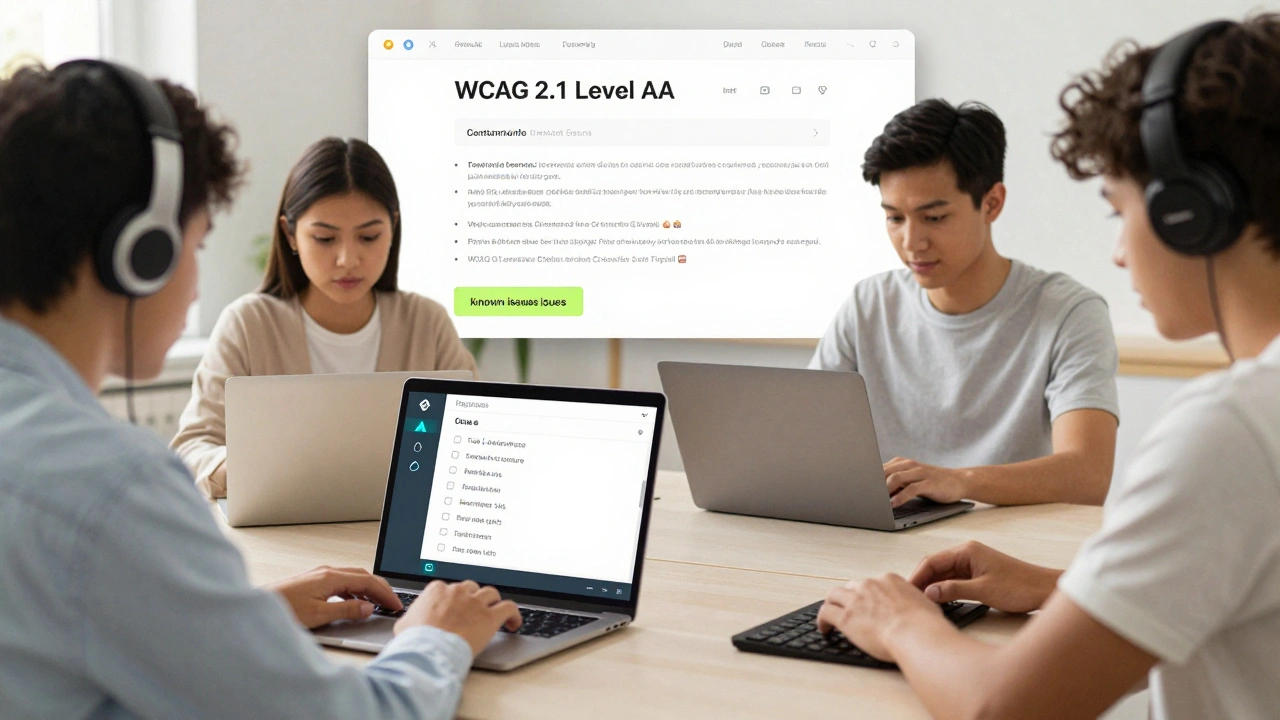
Most online courses today don’t work for everyone. Not because the content is too hard, but because the platform doesn’t let people with disabilities use it. A student using a screen reader can’t navigate a quiz because buttons aren’t labeled. A learner with limited hand mobility can’t submit an assignment because the form requires precise mouse clicks. These aren’t edge cases-they’re everyday barriers in too many learning platforms. And if your course or LMS doesn’t have a clear accessibility statement, you’re not just failing users-you’re risking legal compliance.
What an accessibility statement actually does
An accessibility statement isn’t a legal checkbox. It’s a public promise. It tells users: we see you, we’re trying, and here’s how to get help. It’s not about perfection-it’s about transparency. You don’t need to claim your course is 100% accessible. You just need to say what you’ve done, what’s still broken, and how someone can reach you when they hit a wall.
In New Zealand, under the Human Rights Act and the Web Accessibility Standard (WCAG 2.1 Level AA), educational institutions must make digital content accessible. The same rules apply to universities, private colleges, and corporate training platforms. An accessibility statement is your first line of defense against complaints and legal action. It shows you’re proactive, not reactive.
What belongs in a real accessibility statement
Too many accessibility statements are copy-pasted templates full of vague promises like “we strive for accessibility.” That’s not enough. A real one includes:
- Scope: Which platforms, courses, or tools does this apply to? (e.g., “This statement covers Moodle 4.3, our Canvas LMS, and all video lectures uploaded since January 2025”)
- Standards followed: WCAG 2.1 Level AA is the global baseline. Mention it. Don’t say “we follow accessibility guidelines”-name the standard.
- Current status: List known issues. Don’t hide them. Example: “PDF handouts from 2023 courses are not fully tagged for screen readers. We are reprocessing them by June 2025.”
- Alternatives: If a video lacks captions, say how users can get a transcript. If a quiz uses drag-and-drop, offer a keyboard-friendly version on request.
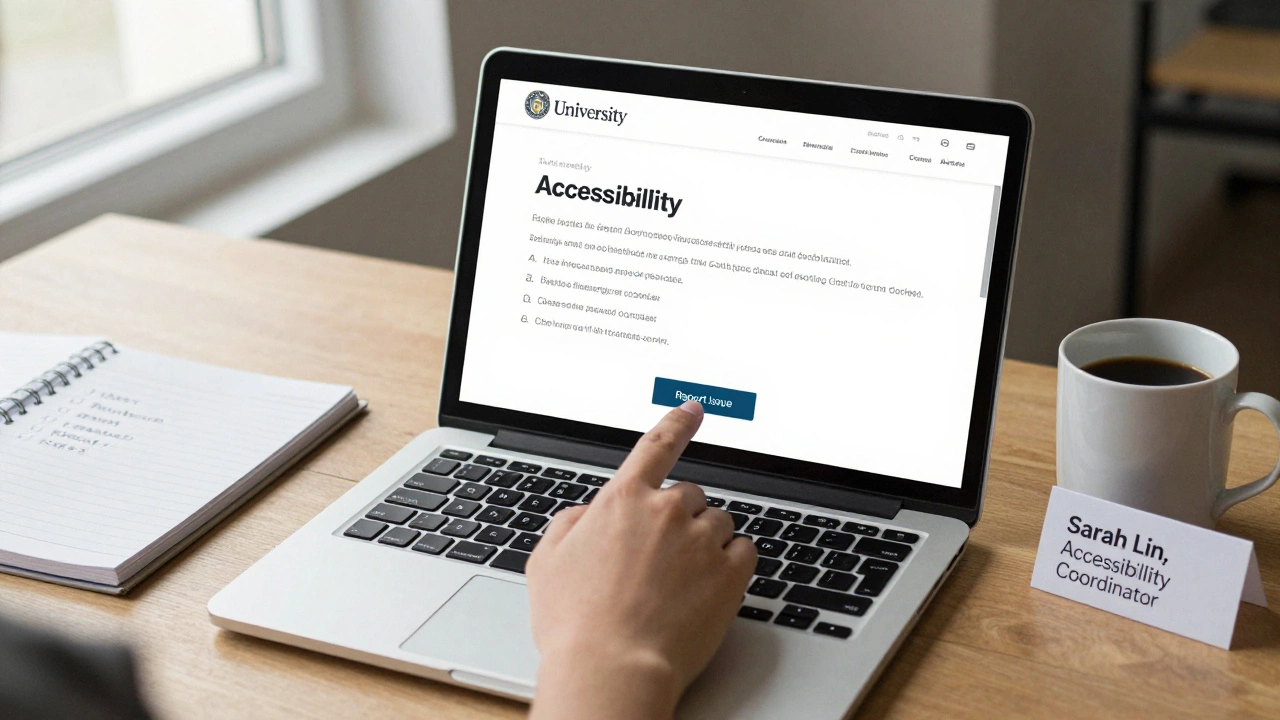
- Contact info: A real person. Not a generic helpdesk. Name a role: “Contact Sarah Lin, Accessibility Coordinator, at [email protected] or +64 9 123 4567.”
- Feedback process: How do users report issues? What happens next? “We respond to accessibility reports within 5 business days and provide a fix or workaround within 14 days.”
These aren’t optional. They’re the bare minimum. If your statement doesn’t include these, it’s just noise.
Why LMS platforms lie about accessibility
Many LMS vendors claim their platforms are “WCAG compliant.” That’s misleading. Moodle, Canvas, Blackboard-they all have accessibility features. But compliance isn’t automatic. It depends on how you use them.
Here’s the truth: a course built in Canvas with poorly labeled images, unstructured headings, and auto-play videos without controls is not accessible-even if Canvas itself has the tools to make it so. The platform provides the tools. You provide the implementation.
Most institutions don’t train instructors on accessibility. They just upload content. So the LMS might be technically compliant, but the courses aren’t. That’s why your accessibility statement must focus on your content, not the vendor’s claims.

How to audit your course materials
You don’t need a developer to start fixing accessibility. Here’s what to check yourself:
- Images: Every image that conveys meaning needs alt text. A chart showing student grades? Alt text should say: “Bar chart showing 72% of students passed the midterm, 22% failed, 6% withdrew.” A decorative image? Use empty alt text:
alt="". - Headings: Are you using H1, H2, H3 in order? Skipping levels breaks screen reader navigation. No H1? No H2 after H3? Fix it.
- Links: Don’t say “click here.” Say “Download the Week 5 reading list (PDF, 2.1 MB).”
- Video and audio: All videos need accurate captions. Audio-only content needs a transcript. Don’t rely on auto-captions-they’re wrong 30% of the time on technical terms.
- Forms and quizzes: Can you tab through them? Can you complete them without a mouse? Test with your keyboard only.
- Color contrast: Text over background needs at least 4.5:1 contrast. White text on light gray? That fails. Use free tools like WebAIM’s Contrast Checker.
Run these checks on five random courses. You’ll find issues. Most do. That’s normal. The key is to fix them, not ignore them.
Real examples of good accessibility statements
Here’s what a good one looks like-based on a real statement from the University of Auckland’s online learning portal:
“Our online courses follow WCAG 2.1 Level AA. As of December 2025, all new video lectures include captions generated by human transcribers. Older videos (2020-2024) are being updated in order of enrollment. PDFs from 2023 and earlier are not fully accessible. We will provide a readable version upon request. If you encounter an accessibility barrier, contact [email protected]. We respond within 48 hours and resolve issues within two weeks.”
Notice: specific dates, clear actions, named contact, realistic timeline. No fluff. No promises they can’t keep.
What happens if you don’t have one
In 2024, a student in Wellington filed a complaint with the Human Rights Commission after being unable to complete an online course because the quiz interface didn’t support keyboard navigation. The institution had no accessibility statement. They lost the case. The court ordered them to pay $18,000 in damages and fix all courses within six months.
That’s not rare. The U.S. Department of Education opened 172 accessibility complaints against colleges in 2023. In Australia, the Disability Discrimination Act has led to similar cases. New Zealand’s Human Rights Commission has seen a 40% increase in digital accessibility complaints since 2022.
Without a statement, you’re inviting liability. With one, you’re showing good faith-even if your site isn’t perfect.
How to build your statement in 3 days
You don’t need a committee. Here’s how to get it done fast:
- Day 1: Pick one LMS and three courses. Run the checklist above. Write down every issue you find.
- Day 2: Draft the statement using the template above. Be honest. List what’s broken. Include contact info.
- Day 3: Publish it. Put it in your course catalog, your LMS footer, and your main website’s accessibility page. Tell your instructors: “This is our commitment. Use it.”
Done. You’re compliant. You’re ethical. You’re helping real people learn.
Next steps: keep improving
Accessibility isn’t a one-time task. It’s a habit. Set a quarterly review. Every three months, check:
- Are new courses meeting the standards?
- Are old issues fixed?
- Has anyone contacted you about access?
Train your instructional designers. Add accessibility to your course design checklist. Make it part of your quality assurance process.
There’s no magic tool that makes your content accessible. Only people who care enough to check, fix, and speak up. Your accessibility statement is the first sign you’re one of them.
Do I need an accessibility statement if my LMS says it’s compliant?
Yes. Your LMS might be built to support accessibility, but your courses may not be. The statement must reflect what you’re actually delivering, not what the platform promises. A compliant platform with inaccessible content still fails users.
Can I use an automated tool to generate my accessibility statement?
Automated tools can help find issues, but they can’t write your statement. You need to explain your context, your timeline, and your contact person. A robot can’t say, “We’re fixing 120 old videos by June,” or name your accessibility coordinator. Human honesty matters more than automation.
What if I can’t fix all accessibility issues right away?
That’s okay. The law doesn’t require perfection. It requires good faith. List what you can’t fix yet, explain why, and give a realistic deadline. For example: “We’re working with our vendor to fix mobile navigation in our 2022 courses. All will be updated by December 2025.” Transparency builds trust-even when you’re still fixing things.
Is an accessibility statement legally required?
In New Zealand, under the Human Rights Act and the Web Accessibility Standard, public and private educational providers must ensure digital content is accessible. While the law doesn’t always say “you must publish a statement,” courts and human rights bodies treat the absence of one as evidence of negligence. Having one is the clearest way to show compliance.
Who should be responsible for the accessibility statement?
It should be owned by someone with authority to act: an accessibility coordinator, head of digital learning, or head of IT. Not a student worker or a volunteer. If the person named can’t fix issues, the statement is meaningless. Make sure the contact has budget, time, and power to make changes.
Comments
Pamela Tanner
Finally, someone laid this out without fluff. I’ve reviewed accessibility statements for 12 institutions, and 9 of them were just marketing copy. This is the exact template we’re adopting at our university next quarter. No more ‘we strive’-just facts, timelines, and a real person to email. Thank you.
Kristina Kalolo
Interesting breakdown. I’m curious how many institutions actually track whether users who report issues are satisfied with the resolution. Is there any data on follow-up rates or user feedback loops after a report is filed?
ravi kumar
As someone who teaches online courses in rural India, I’ve seen students struggle with untagged PDFs and uncaptioned videos for years. No one ever told us to fix this. This post is a wake-up call. I’m going through my 8 courses this weekend. Thank you for the checklist.
Megan Blakeman
This is so important... I mean, like, really, really important. I’ve had students cry because they couldn’t finish an exam. And no one cared. I’m going to print this out and tape it to my monitor. Every. Single. Day. 🙏
Akhil Bellam
Oh, so now we’re policing instructors because some lazy admin didn’t train them? Let’s be real-this isn’t about accessibility, it’s about liability avoidance wrapped in virtue signaling. The LMS vendors are laughing all the way to the bank while you’re over here re-tagging alt text like a monk copying scriptures. You think a PDF from 2023 is going to be ‘reprocessed’? Ha. It’ll gather dust until someone sues you. And even then, you’ll blame the instructor.
Amber Swartz
OMG I’m literally shaking right now. This post just made me cry. I had a student last semester who used a head pointer because she had cerebral palsy. She spent 3 HOURS trying to submit one assignment because the button was invisible to her device. And the professor just said, ‘Just email me the file.’ No apology. No fix. No statement. I’m so angry. I’m going to send this to our dean. RIGHT NOW.
Stephanie Serblowski
Look, I get the moral imperative, but let’s be honest-most instructors are already drowning. You want them to audit 5 courses AND write a legally defensible statement AND train staff AND fix legacy content? That’s not accessibility. That’s a full-time job disguised as a checklist. You’re asking for perfection from people who are already burned out. Maybe we should start paying them to do this? Just a thought.
Renea Maxima
What if the real issue isn’t the statement, but the entire paradigm of digital education? Why are we forcing disabled learners into a system built for neurotypical, able-bodied, high-bandwidth users? The statement is just a Band-Aid on a gunshot wound. We’re not fixing accessibility-we’re just making the guilt less visible.
Jeremy Chick
Bro. This is the most useful thing I’ve read all year. I work in IT at a community college. We’ve got 400 courses on Moodle and zero accessibility docs. I’m going to build a bot that scans all uploads for missing alt text and auto-tags ‘decorative’ images. Then I’m emailing every instructor a link to this post. No more excuses.
Sagar Malik
WCAG 2.1? That’s so 2020. Did you know that the EU just passed the EN 301 549 v3.2.1 standard which mandates real-time AI captioning and haptic feedback for all interactive elements? You’re still talking about alt text like it’s 2015. This entire post is outdated. The future is neuroadaptive interfaces-not human-edited PDFs. You’re fighting the last war.
Seraphina Nero
I just wanted to say thank you. I’m a grad student with low vision. I’ve been silently struggling through courses for two years. I didn’t know I had the right to ask for transcripts or keyboard alternatives. This made me feel seen. I’m going to send this to my advisor.
Megan Ellaby
Wait so you’re saying we can’t just say ‘we follow accessibility guidelines’ anymore? I’ve been using that line for years. I’m gonna have to go back and fix my old modules… this is gonna take forever. But… yeah. You’re right. I’m doing it. Starting with my bio course. Alt text on all diagrams. No more ‘image of a cell’.
Rahul U.
Excellent guide. I’ve shared this with our digital learning team in Bangalore. We’ve started a monthly ‘Accessibility Hour’ where instructors swap fixes. We’re also adding a ‘Accessibility Badge’ to courses that meet the checklist. Small steps. But real ones. 🙏
E Jones
Let me tell you what they don’t want you to know. This isn’t about accessibility. It’s about control. The government, the LMS corporations, the compliance consultants-they all profit when you’re scared to make mistakes. They feed you this checklist so you’ll spend your budget on audits instead of hiring more staff. They want you to think fixing alt text is the solution. But the real solution? Stop forcing everyone into the same digital mold. Let students learn in their own way. Let them use voice, gesture, tactile interfaces. But no-they’d rather you fix a PDF than rethink the entire system. This is digital colonialism dressed up as inclusion.