

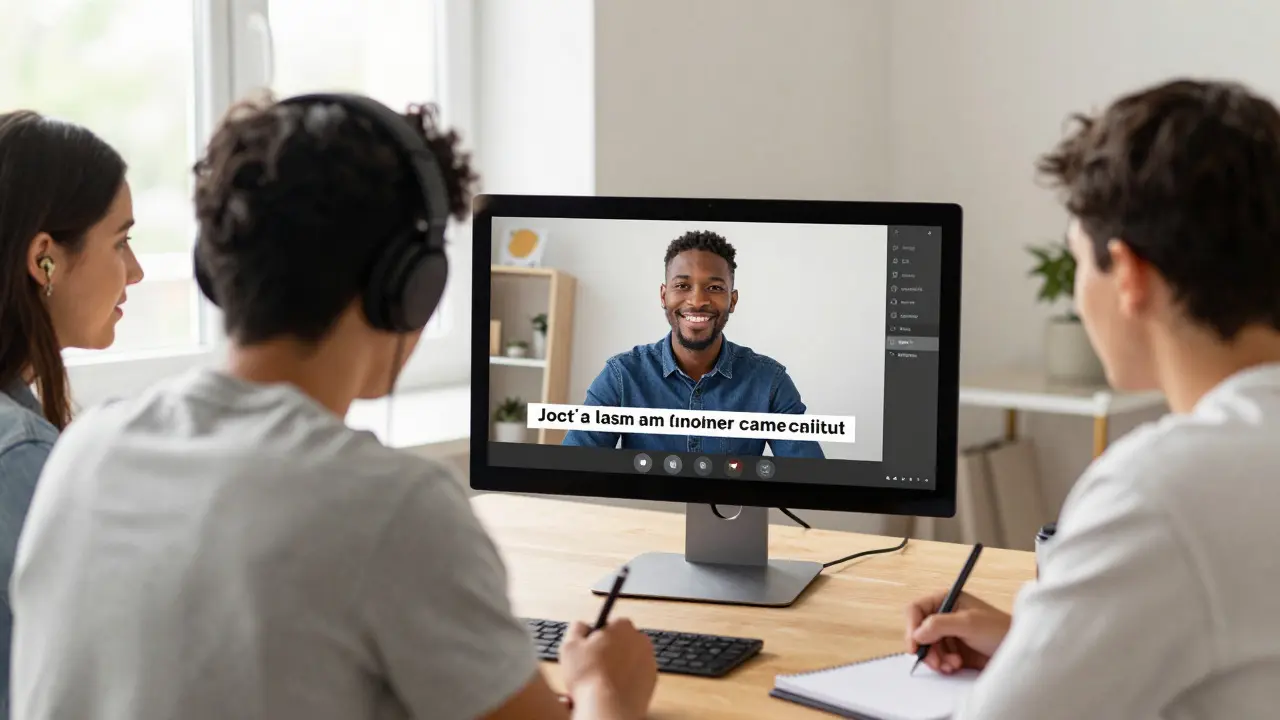
You’ve spent weeks filming, editing, and polishing your latest course module. The content is sharp, the lighting is perfect, and you’re ready to launch. But if you skip one critical step-adding captions and transcripts-you might be locking out a significant portion of your audience. It’s not just about being nice; it’s about legal compliance, better search rankings, and actually helping people learn.
In 2026, accessible digital content isn’t a luxury feature. It’s a baseline expectation. Whether you are an independent instructor on Teachable, a corporate trainer using LMS platforms like Moodle, or a university professor uploading to YouTube, the rules of engagement have changed. This guide breaks down exactly how to add captions and transcripts to your course videos without breaking the bank or losing your mind.
Why Accessibility Matters More Than You Think
Let’s get the boring stuff out of the way first: the law. Under the Americans with Disabilities Act (ADA) and Section 508 in the US, as well as the European Accessibility Act which is fully enforced across the EU by 2025, digital content must be accessible. If your course videos lack accurate captions, you are technically discriminating against learners who are deaf or hard of hearing. Lawsuits against universities and online learning platforms for this exact reason have skyrocketed in recent years.
But beyond the legal threats, there is a practical side. Research from the W3C Web Accessibility Initiative shows that captions benefit everyone. Students watching in noisy environments-like a busy coffee shop, a crowded train, or a dorm room with thin walls-rely on text to follow along. Non-native speakers also use captions to improve their language comprehension while learning complex topics. By adding captions, you aren't just checking a box; you are increasing engagement and completion rates across the board.
Is it illegal to have uncaptioned course videos?
In many jurisdictions, yes. In the US, Title II and III of the ADA require public accommodations and state/local government services to be accessible. Courts have increasingly interpreted this to include digital platforms. In Europe, the European Accessibility Act mandates accessible design for digital products and services. While enforcement varies, the risk of litigation is real and growing.
Captions vs. Subtitles vs. Transcripts: Know the Difference
People often use these terms interchangeably, but in the world of accessibility standards like WCAG 2.1, they mean very different things. Confusing them can lead to failed audits and frustrated users.
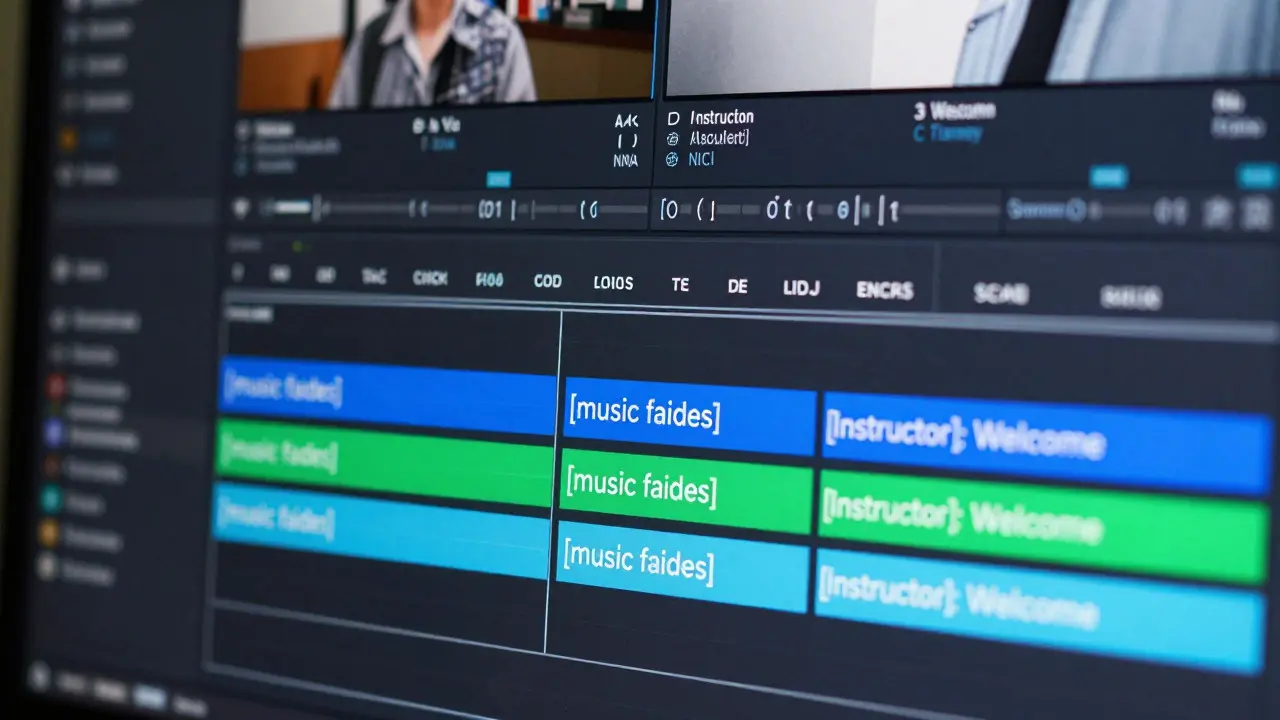
- Captions: These are synchronized text overlays that appear on the video screen. They include spoken dialogue AND non-speech audio cues, such as [door slams], [upbeat music plays], or [sighs]. Captions are essential for deaf and hard-of-hearing viewers.
- Subtitles: These usually only transcribe spoken dialogue and are often used for translation purposes (e.g., English subtitles for a Spanish video). They do not typically include sound effects. For accessibility compliance, you need captions, not just subtitles.
- Transcripts: A full-text document that contains all spoken words, speaker labels, and descriptions of relevant visual or auditory elements. Transcripts are read separately from the video and are crucial for screen reader users who cannot watch the video at all.
To be truly accessible, your course needs both captions (for those who can see the video but not hear it) and transcripts (for those who use screen readers or prefer reading).
The Gold Standard: WCAG 2.1 Compliance
If you want to know if your captions are good enough, look to the Web Content Accessibility Guidelines (WCAG). Specifically, you should aim for Level AA compliance, which is the standard most courts and organizations reference.
Here is what WCAG requires for captions:
- Synchronization: Captions must match the audio track timing perfectly. If there is a lag, it disrupts the learning flow.
- Completeness: All speech and relevant non-speech sounds must be included.
- No Omissions: Do not summarize. Every word spoken must be captioned.
- Identification: If multiple speakers are talking, identify who is speaking (e.g., [John]: Hello there).
For transcripts, the guidelines require that they provide an equivalent experience. This means describing charts, graphs, or on-screen text that appears during the video so the reader understands the context.
How to Create Captions: Tools and Techniques
You have three main paths for creating captions: manual creation, AI-assisted generation, or professional services. Each has trade-offs regarding cost, time, and accuracy.
1. Manual Captioning (The Most Accurate)
This involves typing out every word yourself or hiring a human captioner. It is the gold standard for accuracy, especially for technical courses with specific terminology, jargon, or overlapping speech. However, it is slow and expensive. Expect to pay between $1 and $3 per minute of video for professional human captioning services.
2. AI-Generated Captions (The Fast Option)
Platforms like YouTube, Vimeo, and EdX offer automatic speech recognition (ASR) tools. These are free or low-cost and incredibly fast. In 2026, AI accuracy has improved dramatically, often hitting 90-95% accuracy for clear audio.
The Catch: AI struggles with accents, background noise, and specialized vocabulary. It might confuse "machine learning" with "marine learning." You must review and edit AI-generated captions before publishing. Never trust auto-captions blindly. Treat them as a first draft.
3. Hybrid Approach
Many educators use a hybrid model. Generate captions with AI, then spend 10-15 minutes reviewing and correcting errors. This balances speed with quality. Tools like Rev.com, Otter.ai, and even built-in editors in Camtasia or Adobe Premiere Pro make this workflow seamless.
| Method | Cost | Accuracy | Best For |
|---|---|---|---|
| Manual Human | High ($1-$3/min) | Very High (99%+) | Technical courses, high-stakes training |
| AI Auto-Captions | Low/Free | Medium-High (90-95%) | Budget-conscious creators, casual content |
| Hybrid (AI + Edit) | Medium | High (98%+) | Most online courses, balanced approach |
Creating Effective Transcripts
A transcript is more than just a copy-paste of your captions. It is a standalone resource. When writing a transcript, structure it for readability.
Start with a brief introduction summarizing the video’s key takeaways. Then, use timestamps to break up the text. This allows learners to jump to specific sections. Label speakers clearly. If you show a slide with a graph, describe it in brackets. For example: [Graph shows a 20% increase in sales from Q1 to Q2].
Offer the transcript in multiple formats if possible. A simple HTML page is best for screen readers because it is easily navigable. PDFs can be tricky unless they are tagged correctly. Plain text files (.txt) are also a safe bet for compatibility.
Integrating Captions into Your LMS
Most Learning Management Systems (LMS) support standard caption file formats. The most common format is SRT (SubRip Text). It’s simple, widely supported, and easy to edit in any text editor.
Another popular format is VTT (WebVTT), which is designed specifically for HTML5 video players. VTT allows for styling cues, like changing font color or size, which can help with visibility.
When uploading to platforms like Canvas, Blackboard, or Moodle, look for the "Accessibility" or "Media" section when editing your video assignment. There will usually be an option to upload a caption file. Ensure the filename matches the video ID or name exactly to avoid sync issues.
If you are hosting videos on YouTube or Vimeo, use their built-in studio editors to upload your SRT or VTT files. This ensures the captions display correctly across all devices, including mobile apps.
Common Pitfalls to Avoid
Even well-meaning creators make mistakes. Here are the most common errors that fail accessibility audits:
- Ignoring Sound Effects: Forgetting to caption [music fades] or [alert beep] leaves deaf learners missing critical context.
- Poor Timing: Captions appearing too early or disappearing too quickly make them unreadable. Aim for a maximum of two lines per cue, with no more than 42 characters per line.
- Contrast Issues: White text on a light background is invisible. Always ensure your captions have a black outline or semi-transparent background box.
- Missing Speaker Identification: In interviews or multi-person discussions, failing to label speakers causes confusion.
- Auto-Play Without Controls: Never auto-play videos with sound. Allow users to control playback, and ensure captions are turned on by default.
Testing Your Work
Before you publish, test your captions. Watch the video with the sound off. Can you understand everything? Does the timing feel natural? Ask a colleague or a beta student to review it. Better yet, recruit someone who uses screen readers or is hard of hearing to give feedback. Their insights will be invaluable.
Use automated tools like WAVE or Axe to check your webpage’s accessibility, but remember: automation can’t catch semantic errors or poor timing. Human review is still king.
Next Steps for Instructors
Start small. Pick your next course module and commit to adding both captions and a transcript. Use AI to generate the first draft, then edit it carefully. Save the SRT file and the transcript document in your project folder. Make this a standard part of your production checklist, just like checking your microphone levels.
Accessibility is not a one-time fix. It is a mindset. By making your content accessible, you open doors for learners who might otherwise be excluded. You also future-proof your content for SEO and broader distribution. It’s a win-win.
What is the best file format for captions?
SRT (SubRip Text) is the most universally supported format for video captions. It works with almost all LMS platforms, YouTube, and Vimeo. VTT (WebVTT) is also excellent, especially for HTML5 web players, as it supports styling and metadata.
Do I need captions if my video has no audio?
If the video is purely visual with no spoken dialogue, you may not need traditional captions. However, you should still provide a transcript or descriptive text that explains the visual content for screen reader users. This ensures the information is accessible to those who cannot see the video.
How accurate do AI captions need to be?
WCAG guidelines suggest that captions should be accurate. While AI can achieve 90-95% accuracy, errors in key terms can hinder learning. It is recommended to manually review and correct AI-generated captions, aiming for near-perfect accuracy, especially for educational content where precision matters.
Can I use subtitles instead of captions?
No. Subtitles typically only translate spoken dialogue and omit sound effects. Captions include all audio cues, such as [doorbell rings], which are essential for deaf and hard-of-hearing viewers. For accessibility compliance, you must use captions.
Where should I host my transcripts?
Host transcripts directly on your course platform, linked clearly from the video player. An HTML page is ideal for screen reader compatibility. If using a PDF, ensure it is properly tagged and searchable. Avoid embedding transcripts in images, as screen readers cannot read text within images.