


Imagine trying to follow a complex software tutorial in a noisy open-plan office. You can’t hear the instructor clearly, so you pause the video every thirty seconds to rewind. Now imagine doing that while your colleague is asking you for help on a different task. Frustrating, right? That’s exactly what happens when Closed Captioning is missing or inaccurate in corporate training materials. It’s not just a nice-to-have feature; it’s the difference between engagement and abandonment.
For years, accessibility was treated as a legal checkbox-something HR did to avoid lawsuits. But in 2026, the landscape has shifted. With remote work becoming standard and global teams expanding, accessible training videos are a core business strategy. They ensure that every employee, regardless of hearing ability, language proficiency, or environment, gets the same quality of instruction. This guide breaks down how to implement effective closed captioning and broader accessibility features without breaking the bank or slowing down your production workflow.
Why Closed Captioning Matters Beyond Compliance
Many organizations think they only need captions because the Americans with Disabilities Act (ADA) or similar local laws require them. While legal compliance is important, the real driver is user experience. Research from the World Wide Web Consortium (W3C) suggests that up to 85% of videos on social media are watched on mute. In a workplace context, this translates to employees watching training clips in quiet zones, during commutes, or while multitasking.
Video Accessibility also boosts retention rates. When text reinforces audio, learners process information through two channels simultaneously-visual and auditory. This dual-coding theory means employees remember more details about safety protocols, new software features, or compliance rules. If your training video lacks captions, you’re essentially ignoring half the brain’s processing power.
Furthermore, captions serve non-native speakers. In a global company, an English-speaking trainer might speak too fast for someone whose first language is Mandarin or Spanish. Captions act as a real-time translation aid, allowing these employees to keep up with the pace of the lesson without feeling left behind.
The Difference Between CC and Subtitles
This is the most common confusion among content creators. People often use "subtitles" and "captions" interchangeably, but they serve different purposes.
- Subtitles: Designed for viewers who understand the spoken language but want a text version. They usually contain only dialogue and omit sound effects or speaker identification.
- Closed Captions (CC): Designed for deaf and hard-of-hearing viewers. They include dialogue, speaker labels (e.g., [Instructor], [Music]), and sound effects (e.g., [Door Slams]).
For training videos, you almost always need true Closed Captions. If a video shows a machine making a loud noise to signal danger, and there’s no caption indicating that sound, a deaf learner misses critical safety context. Always aim for full CC standards rather than simple subtitles.
Technical Standards: WCAG and Quality Benchmarks
To ensure your videos are actually accessible, you need to follow established standards. The gold standard is the Web Content Accessibility Guidelines (WCAG), specifically version 2.1 or 2.2. These guidelines provide measurable criteria for success.
Here are the key technical requirements for caption files:
- Accuracy: Aim for 95-98% accuracy. Automated tools get you close, but human review is essential for technical jargon.
- Synchronization: Text must appear within 0.5 seconds of the corresponding audio. If the caption lags, viewers lose trust in the timing.
- Readability: Use a font size that is at least 1% of the screen width. For a 1920x1080 video, that’s roughly 19-20 pixels. Avoid italics or bold unless necessary for emphasis.
- Placement: Keep captions in the bottom third of the screen. Never place them over critical visual elements like charts or code snippets.
| Method | Cost per Minute | Accuracy | Best For |
|---|---|---|---|
| AI-Generated Only | $0 - $0.50 | 85-90% | Drafts, low-stakes internal memos |
| Human Post-Production | $2.00 - $4.00 | 98-100% | Compliance training, external courses |
| Live Captioning | $100+ / hour | 95-97% | Webinars, live workshops |
Note that costs vary by region and vendor complexity. In New Zealand and Australia, specialized vendors may charge slightly less due to lower operational costs compared to North America, but quality remains consistent if you choose reputable partners.
Step-by-Step Implementation Workflow
You don’t need a film studio to create accessible videos. Here is a practical workflow that works for small teams and large enterprises alike.
1. Record Clean Audio
Garbage in, garbage out. If your microphone picks up keyboard clacking or HVAC hum, even the best AI captioner will struggle. Use a lapel mic or a high-quality USB microphone. Speak clearly and at a moderate pace. Avoid overlapping conversations.
2. Generate a Draft
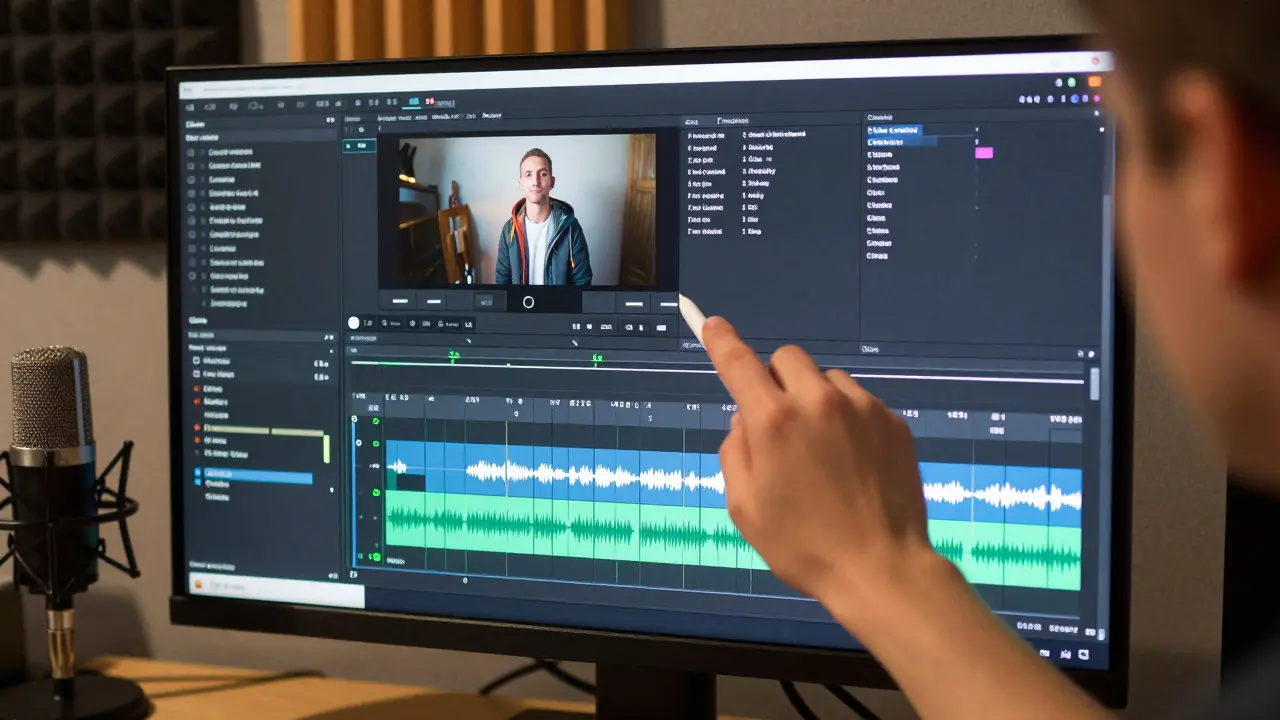
Use an automated tool like Adobe Premiere Pro’s speech-to-text, Rev, or Descript to generate a draft transcript. This saves hours of manual typing. Most modern editing software now integrates this directly into the timeline.
3. Human Review and Edit
This is the non-negotiable step. Have a native speaker or subject matter expert review the draft. Check for:
- Misheard technical terms (e.g., "Python" vs. "Pie-ton").
- Missing punctuation that changes meaning.
- Incorrect speaker labels.
4. Export and Embed
Export your captions as an SRT (SubRip Subtitle) or VTT (WebVTT) file. Upload these alongside your video file to your Learning Management System (LMS). Ensure your LMS supports synchronized playback of these files.
Common Pitfalls to Avoid
Even experienced teams make mistakes that undermine accessibility efforts. Watch out for these traps:
- Buried Captions: Placing text behind logos or watermarks makes it unreadable. Always check the final render on multiple devices.
- Wall of Text: Don’t dump entire paragraphs on screen at once. Break sentences into readable chunks (max 2 lines).
- Ignoring Sound Effects: If a character laughs, add [Laughter]. If a door closes, add [Door Closes]. These cues provide narrative context for deaf viewers.
- Static Files: If you update the video, update the captions. Mismatched audio and text confuse learners more than no captions at all.
Measuring Success
How do you know if your accessibility efforts are working? Track these metrics in your LMS:
- Completion Rates: Do users finish the video when captions are enabled? Compare against sessions where captions were off.
- Quiz Scores: Are learners scoring higher on assessments related to captioned modules?
- User Feedback: Add a simple question to post-training surveys: "Were the captions helpful?"
If completion rates drop significantly in noisy environments or among non-native speakers, your captions likely need refinement.
Frequently Asked Questions
Are closed captions mandatory for all training videos?
In many jurisdictions, yes, if the training is required for employment. Under the ADA in the US and similar laws in other countries, digital content provided to employees must be accessible. Even where not legally mandated, industry best practices strongly recommend them for inclusion and retention.
What is the best format for caption files?
SRT (SubRip Subtitle) and VTT (WebVTT) are the most widely supported formats. SRT is simpler and compatible with almost all video players and LMS platforms. VTT offers more styling options and is preferred for web-based streaming services. Choose based on your LMS documentation.
Can I rely solely on AI-generated captions?
Only for informal, low-stakes content. For professional training, AI errors in technical terminology can lead to misunderstandings. Always use a human-in-the-loop review process to ensure 95%+ accuracy and correct context.
How much does it cost to caption a one-hour video?
Fully professional captioning typically costs between $120 and $240 per hour of video content. This includes transcription, timing, and proofreading. AI-assisted services can reduce this to under $50, but require additional time for manual editing.
Do captions help non-native English speakers?
Yes, significantly. Captions provide a visual reference for pronunciation and vocabulary. They allow learners to read at their own pace while listening, which reduces cognitive load and improves comprehension for those still developing fluency in the training language.