

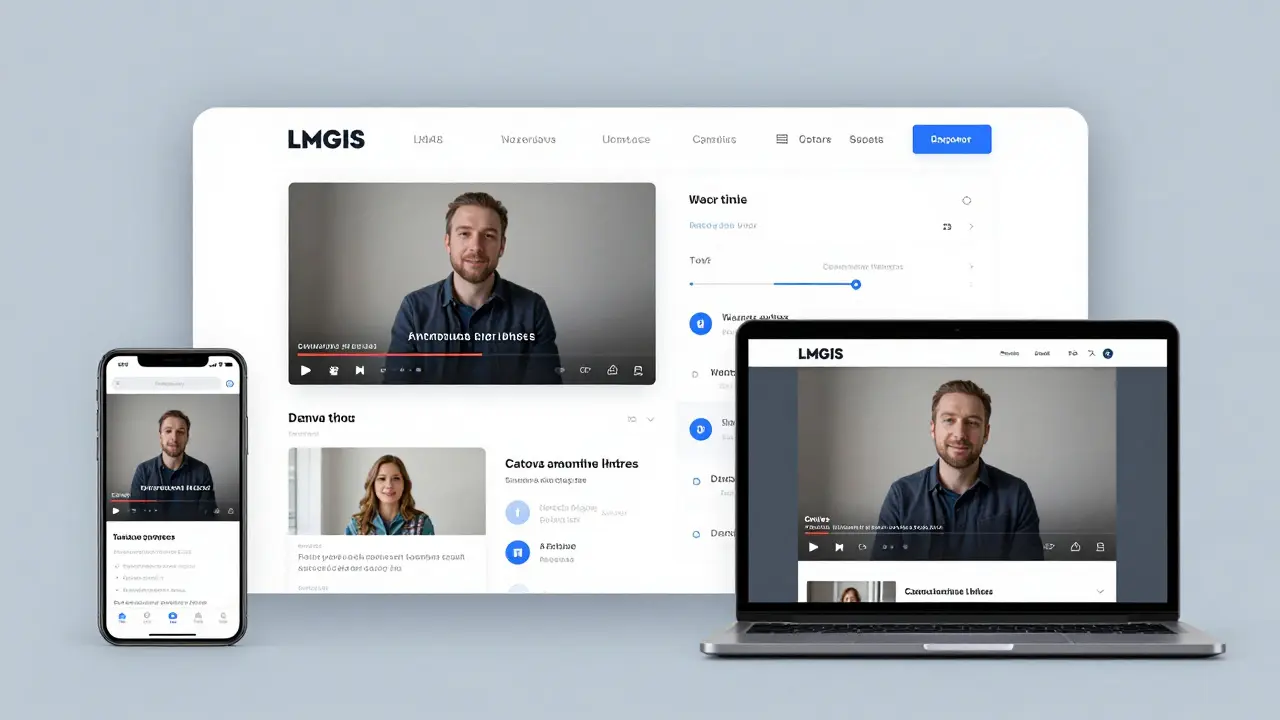
Embedding videos in your Learning Management System isn’t just about uploading a file-it’s about making sure learners actually watch, understand, and retain what they see. If your videos are buried in a folder, play without captions, or break on mobile devices, you’re losing engagement before the first second even loads.
Why Video Embedding Matters in LMS
Studies show that learners retain 95% of a message when they watch it in a video, compared to 10% when reading text. But that only works if the video loads fast, plays smoothly, and fits into the learning flow-not interrupts it.
Most modern LMS platforms like Canvas, Moodle, Blackboard, and Google Classroom support video embedding, but not all do it the same way. Some force you to upload files directly, which bloats storage and slows down pages. Others let you link to external hosts like YouTube or Vimeo, which keeps things lean and reliable.
The key is choosing the right method for your needs: control vs. convenience, privacy vs. accessibility, and performance vs. features.
Step-by-Step: Embedding Videos in Popular LMS Platforms
Here’s how to embed videos in the most common systems used in schools and corporate training.
Canvas
In Canvas, go to the page or assignment where you want the video. Click the Embed Media button in the rich text editor (it looks like a filmstrip). Then paste the video URL from YouTube, Vimeo, or Panopto. Canvas automatically pulls in the player and makes it responsive.
Pro tip: Use Panopto for internal recordings. It integrates natively with Canvas and tracks who watched, how long, and if they skipped parts. That data helps you adjust future lessons.
Moodle
Moodle gives you two main options: upload the video file directly, or use the Embed plugin. Uploading is simple but takes up server space and can cause buffering. Instead, use the Media Embed filter (enable it in Site Administration > Plugins > Filters).
Once enabled, just paste a YouTube or Vimeo link into the text editor. Moodle turns it into a playable video without needing to upload anything. For private videos, use Vimeo Pro or Panopto with password protection and embed the link-Moodle respects access controls.
Blackboard
Blackboard’s Ultra Course View lets you embed videos using the Insert/Edit Media icon (a play button) in the content editor. Paste your video URL, and it auto-generates the player.
If you’re using the Original Course View, go to Build Content > Multimedia, then choose Video. You can upload a file or link to an external source. For large files, always prefer external hosting.
Google Classroom
Google Classroom doesn’t have a built-in video embed tool in assignments or announcements. But you can still embed videos by posting a link to YouTube or Vimeo in the description box. For better tracking, create a Google Site or Google Doc with the embedded video and link to that instead.
Tip: Use YouTube’s privacy settings to make videos unlisted if you don’t want them searchable, but still accessible to students via the link.
Choosing the Right Video Host
Not all video hosts are equal when it comes to LMS. Here’s what to look for:
- YouTube: Free, fast, and works everywhere. But ads, suggested videos, and comments can distract learners. Use privacy settings to make videos unlisted or private to your domain.
- Vimeo: Cleaner interface, no ads, better privacy controls. Vimeo Pro lets you password-protect videos and disable downloads-perfect for sensitive training content.
- Panopto: Built for education. Records lectures, tracks engagement, integrates with LMS, and offers auto-captioning. Costs money, but worth it for institutions.
- Microsoft Stream: Great for schools using Microsoft 365. Integrates with Teams and OneDrive. Offers AI-powered captions and analytics.
For most K-12 and higher ed, Vimeo or YouTube (unlisted) work fine. For corporate training or compliance videos, Panopto or Stream are better choices.
Best Practices for Video Embedding
Embedding a video is just step one. Here’s how to make sure it actually helps learning:
- Keep videos under 8 minutes. Attention spans drop sharply after that. Break longer topics into chunks.
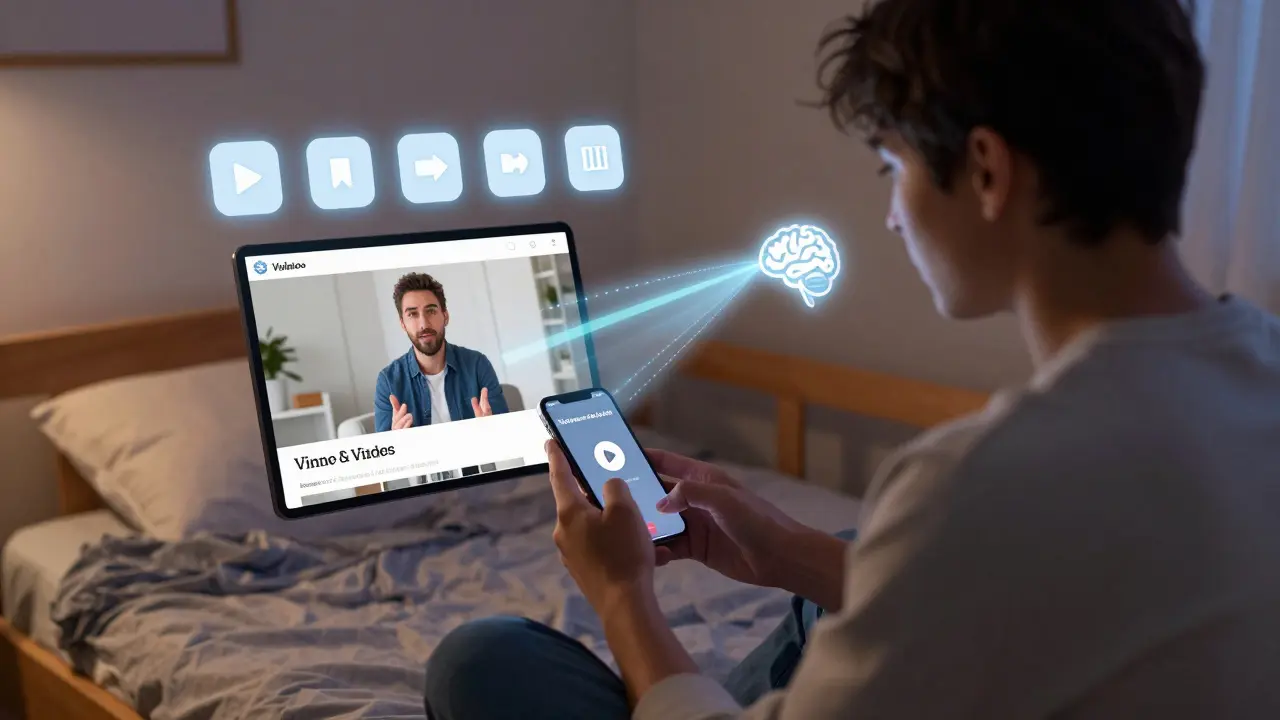
- Always add captions. Not just for accessibility-students watch videos on mute in libraries, dorms, or while commuting.
- Use chapter markers. Platforms like Panopto and YouTube allow you to add timestamps that let learners jump to key sections. Great for review.
- Test on mobile. Over 60% of LMS access happens on phones. Make sure the video player resizes properly and loads quickly on 4G.
- Don’t autoplay. It’s annoying and can trigger pop-up blockers. Let learners choose when to play.
- Add a quick quiz after. Use LMS quiz tools to ask 1-2 questions based on the video. This forces active recall and improves retention.
Common Problems and How to Fix Them
Even when you do everything right, issues pop up. Here are the most common ones:
- Video won’t load: Check if the URL is correct. Try pasting it into a new browser tab. If it works there, your LMS may be blocking external embeds. Look for security settings in your admin panel.
- Video plays but no sound: Check if the video file has audio. Also, some LMS platforms mute autoplaying videos by default. Make sure learners click play.
- Video cuts off on mobile: Use responsive embed codes. Most modern platforms (YouTube, Vimeo) generate these automatically. If you’re pasting raw HTML, make sure the iframe has width: 100% and height: auto.
- Students can’t access the video: If you’re using Vimeo Pro or Panopto, check the sharing permissions. Make sure the link is set to "Anyone with the link" or "Specific people" with the right email list.
- Slow loading: Avoid uploading MP4 files over 1GB. Compress videos using HandBrake or online tools like Clipchamp. Aim for under 200MB for a 5-minute video.
How to Track Video Engagement
Embedding a video without knowing if anyone watched it is like teaching to an empty room. Most LMS platforms offer basic analytics-but only if you use the right tools.
YouTube and Vimeo give you viewer counts and watch time, but they don’t tie that data to individual students. For real tracking, use:
- Panopto: Shows exact watch time per student, skips, pauses, and even if they rewound.
- Microsoft Stream: Integrates with Azure AD to show who watched what, and when.
- Canvas with Video Quiz: You can embed a quiz right after the video and see who completed it.
If your LMS doesn’t support this, use Google Forms or LMS quiz tools to ask students to submit a one-sentence summary of the video. It’s low-tech but effective.
What Not to Do
Here are three big mistakes teachers and trainers make:
- Uploading huge MP4 files to the LMS-this slows down the whole system and fills up your storage quota.
- Using public YouTube links for sensitive content like patient care training or HR policies. Anyone with the link can see it.
- Putting a 30-minute video in a 1-hour lesson without breaking it up or adding interaction. Learners tune out.
Fix these by using external hosts, private sharing, and chunking content.
Future-Proofing Your Video Strategy
By 2026, AI is changing how we use video in learning. Platforms are starting to auto-generate summaries, highlight key moments, and even suggest review questions based on video content.
Start preparing now: use platforms that support transcripts, captions, and metadata. That way, when AI tools become standard in your LMS, your videos will already be ready to work with them.
Don’t wait for the perfect system. Start small: pick one video, embed it properly, add captions, and track who watches it. Then do it again. That’s how effective learning tech gets built-not by buying expensive tools, but by making smart, consistent choices.
Can I embed videos from any website into my LMS?
No-not all websites allow embedding. YouTube, Vimeo, Panopto, and Microsoft Stream are designed for it. Sites like TikTok or Instagram don’t let you embed their videos into LMS platforms. Always check if the video host provides an embed code or iframe URL before trying to use it.
Do I need to pay for a video hosting service to embed videos in my LMS?
No. You can use free services like YouTube or Vimeo (basic plan) to embed videos without paying. But if you need privacy controls, engagement tracking, or captions, paid tools like Panopto or Vimeo Pro are worth the investment-especially for schools or businesses handling sensitive content.
Why does my video play on my computer but not for students?
This usually happens because of privacy settings. If you’re using YouTube, make sure the video is set to "Unlisted" or "Public," not "Private." For Vimeo or Panopto, check that the sharing link is set to "Anyone with the link" and that the LMS isn’t blocking external content. Also, some school networks block YouTube-try using Vimeo or a local host like Panopto instead.
How do I make sure videos are accessible to students with disabilities?
Always add accurate captions or subtitles. Use platforms that auto-generate them like Panopto or YouTube, then edit them for errors. Also, provide a transcript for students who use screen readers. Avoid videos with fast flashing lights or loud sudden sounds that can trigger seizures.
Can I embed videos directly into quizzes in my LMS?
Yes, in most modern LMS platforms like Canvas, Moodle, and Blackboard, you can embed videos directly into quiz instructions or question text. This is useful for video-based assessments-like asking students to watch a lab demonstration and then answer questions about it. Just make sure the video loads before the quiz starts.
What’s the best video format to use if I must upload directly to my LMS?
Use MP4 with H.264 video codec and AAC audio. It’s the most widely supported format across devices and browsers. Avoid AVI, WMV, or MOV unless your LMS specifically supports them. Compress the file to under 200MB for a 5-minute video to ensure fast loading.
Next Steps
Start with one video. Pick a lesson that’s hard to explain with text. Record or find a clear 5-minute clip. Upload it to Vimeo (unlisted) or YouTube (unlisted). Embed it in your LMS. Add captions. Then check your LMS analytics to see who watched it.
Don’t wait for perfection. Just get started. The best LMS video strategy isn’t the one with the fanciest tools-it’s the one you actually use.
Comments
Reshma Jose
I’ve been using Vimeo Pro for corporate training and it’s a game changer. No ads, no distractions, and the analytics tell me exactly who skipped the part about compliance. Students don’t even notice they’re being tracked - and that’s the point.
rahul shrimali
YouTube unlisted works fine dont overcomplicate
Eka Prabha
Let me guess - you’re recommending YouTube because it’s free. But have you considered the ethical implications of exposing students to algorithm-driven content? Ads, suggested videos, comment sections full of trolls - this isn’t education, it’s digital exposure therapy. Institutions should be held accountable for hosting content that could trigger anxiety or misinformation. Panopto isn’t just expensive - it’s responsible.
And don’t even get me started on Moodle’s Media Embed filter. It’s a security loophole waiting to be exploited. I’ve seen students bypass domain restrictions by pasting malicious iframe code disguised as a Vimeo link. Your ‘simple solution’ is a liability.
The fact that you call this ‘best practice’ without mentioning GDPR or FERPA compliance tells me you’ve never worked in a regulated environment. This isn’t a blog post - it’s a legal risk assessment waiting to happen.
deepak srinivasa
Does anyone know if Microsoft Stream works with older LMS versions like Blackboard 9.1? I’m stuck on legacy systems and trying to figure out if it’s worth pushing IT for an upgrade just for video embedding.
pk Pk
Love this breakdown. Seriously. So many teachers just slap a YouTube link in and call it a day. You’ve given us the why and the how - and that’s what changes practice. Start small, yes. But start smart. One video at a time, and you’ll build a library that actually helps.
NIKHIL TRIPATHI
For anyone using Canvas - don’t forget about the LTI integration with Panopto. It’s not just embedding, it’s full LMS sync. Grades, completion status, even quiz triggers based on video views. Took me 3 months to get IT to enable it, but now I know exactly who watched the 12-minute module on lab safety. No more ‘I didn’t see it’ excuses.
Also, compressing videos with HandBrake? Life saver. Used to upload 800MB files, now everything’s under 150MB. Students on dorm Wi-Fi actually watch them now.
Shivani Vaidya
The emphasis on accessibility is commendable. However, one must also consider the cognitive load imposed by excessive multimedia. While captions are essential, the integration of chapter markers and interactive quizzes may fragment attention. A minimalist approach - clear, concise, captioned video - may yield higher retention than layered interventions. The goal is not engagement metrics, but meaningful comprehension.
Rubina Jadhav
I just use YouTube unlisted. It works. My students don’t care about analytics. They just want to watch and move on.
sumraa hussain
Broooooo… I embedded a 20-minute video on Moodle last week and the whole platform crashed for 3 hours. IT said it was ‘bandwidth saturation’ - which I guess means I uploaded a 1.2GB MP4 because I was too lazy to compress it. Now I use HandBrake. Now I use Vimeo. Now I sleep at night. Don’t be me.
Raji viji
Let’s be real - if you’re still using YouTube for anything that isn’t cat videos, you’re doing it wrong. And Panopto? That’s a cash grab dressed up as ‘education tech.’ The real win is using OBS to record your screen, upload to a private S3 bucket, and embed via direct HLS link. Zero third-party tracking, zero ads, zero BS. But of course, you won’t do that because you’d have to learn something. Stick with YouTube, boss.
Rajashree Iyer
Embedded video is not merely a tool - it is a metaphysical bridge between the ephemeral and the enduring. The moving image, once trapped in the static lattice of an LMS, becomes a vessel for collective memory. We are not teaching content - we are curating soul-echoes. And yet, we reduce this sacred act to ‘uploading a file’ and ‘checking analytics.’ Have we forgotten that learning is a ritual? Or have we simply outsourced our souls to Vimeo?
Parth Haz
Excellent overview. I would only add that for institutions using Single Sign-On (SSO), ensure that your video host supports OAuth2 integration. This prevents students from being prompted for external logins - a major friction point in blended learning environments.
Vishal Bharadwaj
Wow. So you’re telling me that uploading a video to your LMS is bad… but linking to YouTube is fine? Except when it’s blocked by the school firewall. And Vimeo Pro costs money? That’s a shocker. And Panopto tracks skips? Oh no, not the tyranny of engagement metrics! This whole post is just corporate ed-tech propaganda wrapped in a ‘practical guide.’ You didn’t mention that most LMS platforms auto-convert uploads to H.264 anyway - so why not just upload? And who even uses Blackboard Original anymore? This feels like a 2018 blog post with a new coat of paint.