

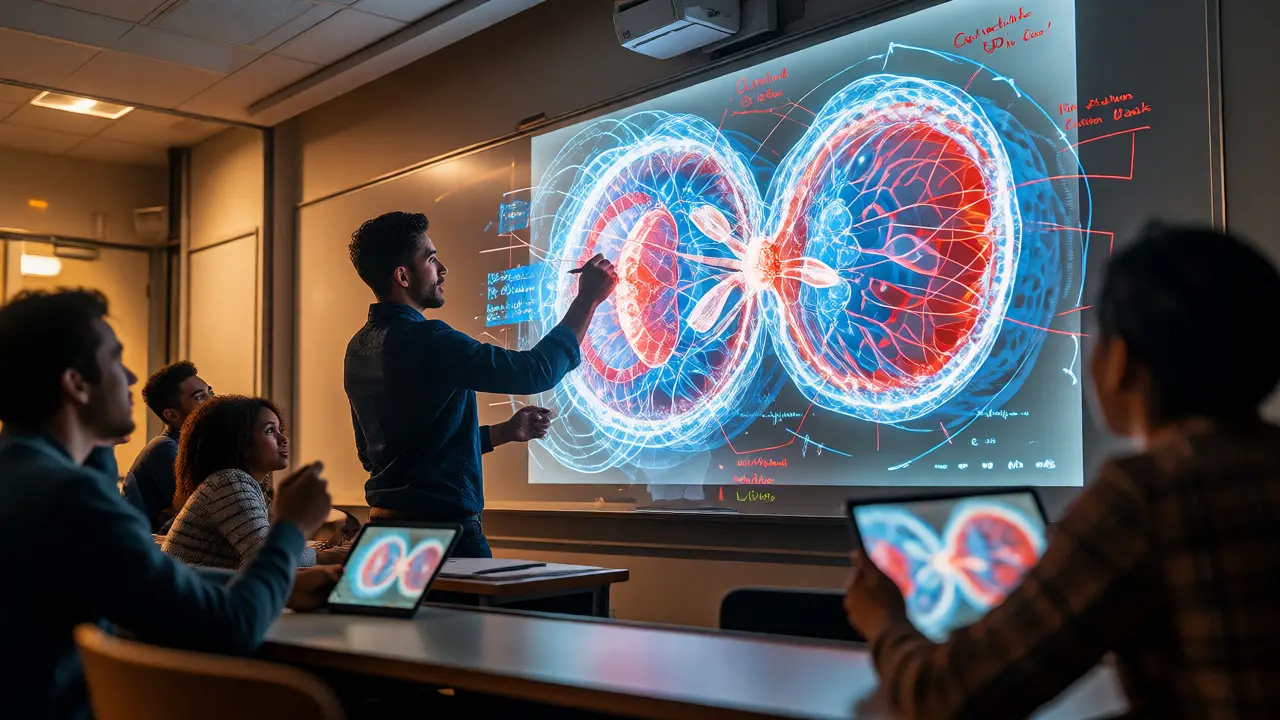
You’ve probably been there. You’re explaining a complex concept-maybe how a cell divides or how a quadratic equation works-and you see the glazed look on your students’ faces. You switch from talking to drawing, but the static slide doesn’t help. The magic happens when you stop presenting at them and start working with them. That’s where interactive whiteboards and real-time demonstrations change the game.
This isn’t just about replacing chalk with a fancy screen. It’s about shifting from passive consumption to active co-creation. When you use an interactive whiteboard correctly, you turn a lecture into a workshop. You can annotate live, move objects around, and let students manipulate data right in front of the class. But here’s the catch: most educators buy these tools and then use them like expensive projectors. They miss the point entirely. This guide breaks down how to actually leverage these tools for real-time demonstrations that stick.
Why Static Slides Fail Active Learners
Think about the last time you tried to learn something new by watching someone else click through bullet points. Did you feel engaged? Probably not. Traditional presentations are linear. They dictate the pace and hide the thinking process behind polished final products. Real-time demonstrations reveal the cognitive process by allowing instructors to build knowledge dynamically alongside students.
When you draw a diagram live, you model how experts think. You make mistakes, correct them, and show why certain steps matter. An interactive whiteboard facilitates this by removing the friction of switching between applications. You don’t need to alt-tab to PowerPoint, then open Excel, then go back to a browser. Everything happens on one canvas. This fluidity keeps the narrative intact. Students aren’t waiting for you to load a new file; they’re watching your logic unfold in real time.
Moreover, these tools support multimodal learning. Some students grasp concepts visually, others kinesthetically. By allowing touch input or stylus interaction, you engage different parts of the brain. A student might remember the shape of a graph better if they physically dragged the axis to change its scale during a demo. That tactile memory is powerful.
Core Features That Actually Matter
Not all interactive whiteboards are created equal. While hardware varies, the software capabilities determine whether a tool enhances learning or just adds clutter. Here are the non-negotiable features you should look for:
- Infinite Canvas: Unlike fixed slides, an infinite canvas lets you zoom out to see the big picture or zoom in for details. This spatial organization helps students understand relationships between ideas.
- Layering Capabilities: You need to be able to stack content. Imagine showing a historical map, then layering troop movements on top, then adding primary source quotes. Layers allow you to peel back information gradually without starting over.
- Integration with External Data: The best tools connect directly to databases, spreadsheets, or coding environments. If you’re teaching statistics, you want to pull live data from a CSV file and plot it instantly, not copy-paste numbers into a separate app.
- Student Collaboration Modes: Can multiple users write at once? In a hybrid classroom, remote students should be able to annotate the same board as those in the room. Latency matters here-if their pen strokes lag, the illusion of shared space breaks.
Don’t get distracted by gimmicky animations or pre-made templates. Simplicity wins. The tool should disappear so the content shines. If you spend more time formatting text boxes than explaining concepts, you’re doing it wrong.
Designing Effective Real-Time Demos
A successful demonstration isn’t just random writing. It requires scaffolding. Before you even touch the whiteboard, plan the "reveal." What do you want students to discover? Start with a hook-a problem statement or a provocative question. Then, build the solution step-by-step.
For example, in a chemistry class, instead of showing the balanced equation immediately, start with reactants. Ask students what they predict will happen. Use the whiteboard to sketch potential outcomes. Let them vote using a built-in polling feature. Then, run the simulation or show the actual reaction video embedded in the board. Finally, balance the equation together. This sequence turns a fact into a discovery.
Use color strategically. Assign specific colors to specific types of information. Red for errors or warnings, blue for definitions, green for solutions. Consistency reduces cognitive load. Students learn to scan the board quickly because they know what each color means. Avoid rainbow palettes unless you have a very good reason-they confuse rather than clarify.
Another pro tip: leave gaps. Don’t fill every inch of the screen. Leave whitespace for questions that arise spontaneously. If a student asks, "What if we changed variable X?" you can erase part of the equation and test that hypothesis live. This responsiveness proves that the material is dynamic, not dogma.
Overcoming Common Implementation Pitfalls
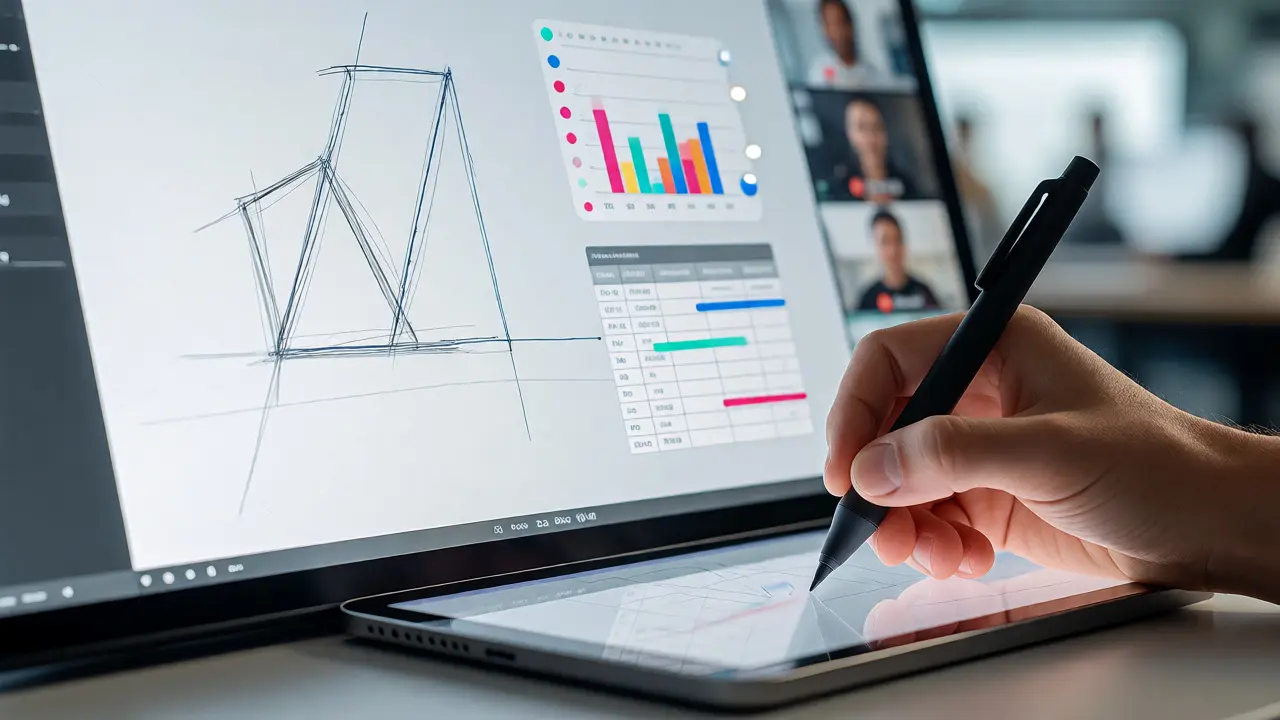
The biggest mistake educators make is treating the interactive whiteboard as a TV. They stand next to it, talk at it, and never touch it. If you aren’t interacting with the surface, you’re wasting the technology. Another common issue is technical friction. If it takes three clicks to bring up the pen tool, you’ll lose momentum. Master the shortcuts. Learn how to quickly clear annotations, change pen thickness, or access the eraser without breaking eye contact with the class.
Hybrid classrooms present unique challenges. Remote students often struggle to see fine handwriting or follow fast-moving cursors. To fix this, slow down your writing speed intentionally. Use larger fonts. Narrate your actions clearly: "I’m moving this triangle to the left now." Record sessions so students can rewatch the construction process later. Many platforms offer cloud storage for boards, which is invaluable for review.
Also, beware of "death by annotation." Just because you can write everywhere doesn’t mean you should. Over-cluttered boards overwhelm working memory. Practice restraint. Erase old notes as soon as they’re no longer relevant. Keep the current focus sharp. Think of the board as a scratchpad, not an archive. Save important takeaways to a separate summary document after class.
Comparing Leading Interactive Whiteboard Platforms
Choosing the right platform depends on your budget, existing tech stack, and pedagogical goals. Below is a comparison of popular options widely used in 2026 educational settings.
| Platform | Best For | Collaboration Level | Key Strength | Cost Model |
|---|---|---|---|---|
| Miro | Brainstorming & Group Projects | High (Unlimited users) | Infinite canvas & vast template library | Freemium / Per-user subscription |
| Jamboard (Legacy/Migrated) | Quick Visuals & Simple Tasks | Moderate (Google Workspace integrated) | Seamless integration with Google Docs/Slides | Part of Google Workspace |
| Microsoft Whiteboard | Windows/Copilot Users | High (Teams integrated) | AI-powered ink-to-shape and Copilot summaries | Free with Microsoft 365 |
| Explain Everything | Flipped Classroom & Video Explanations | Moderate (Recordable) | Combines whiteboard with video recording/audio sync | Subscription per user |
| OpenBoard | Budget-Conscious Schools | Low-Moderate (Local focus) | Open-source, offline capability, simple interface | Free (Open Source) |
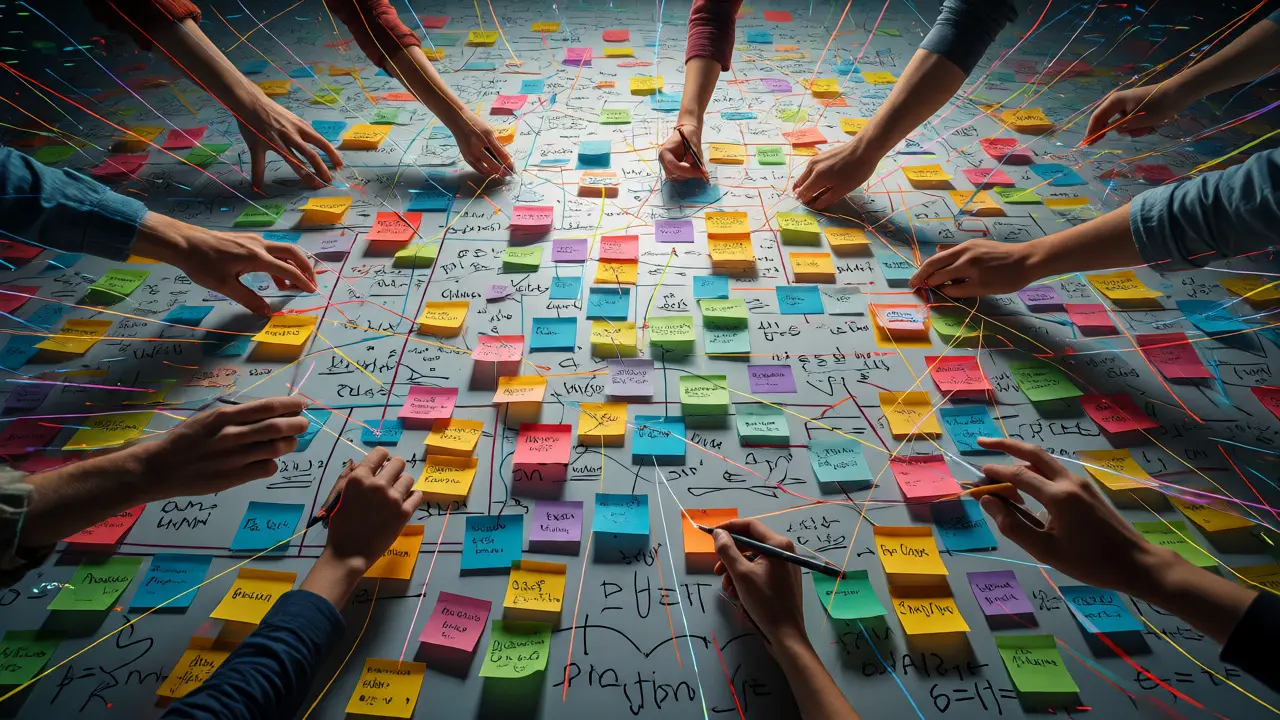
Miro dominates for large-scale collaborative projects because its infinite canvas handles massive amounts of sticky notes and images without slowing down. Microsoft Whiteboard has gained traction due to its AI features-like converting rough sketches into perfect shapes automatically-which saves time during demos. Explain Everything stands out for creating asynchronous content; you can record your voice while drawing, making it perfect for flipped classrooms where students watch demos before class.
Integrating Hardware with Software
Software is only half the battle. The hardware determines how natural the experience feels. Standard laptops with trackpads are frustrating for drawing. You need precision. Most educators opt for one of three setups:
- Digital Pen Tablets: Devices like Wacom Intuos or XP-Pen connect via USB or Bluetooth. They offer pressure sensitivity and tilt detection, mimicking real paper. Great for math teachers who need precise geometry or art instructors.
- Touchscreen Laptops: Convertible laptops allow direct finger or stylus input on the screen. Convenient, but ergonomics can suffer if you’re standing for long periods.
- Dedicated Interactive Panels: Large-format displays (like SMART Boards or Promethean ActivPanels) mounted on walls. These are ideal for lecture halls where visibility is key. However, they are expensive and less flexible for small group work.
For most online or hybrid courses, a mid-range pen tablet paired with a reliable interactive whiteboard app offers the best balance of cost and performance. Ensure your drivers are updated. Nothing kills a lesson faster than a laggy cursor or unrecognized pen inputs.
Assessing Learning Outcomes with Digital Boards
How do you know if these tools are actually improving grades? Look beyond engagement metrics. Track retention rates on quizzes following interactive lessons versus traditional lectures. Many institutions report a 15-20% increase in conceptual understanding when visual, dynamic explanations replace static slides.
Use the board’s history feature to assess participation. Who contributed annotations? Who asked clarifying questions? Exporting the board session provides a transcript of the collective thought process. You can grade students not just on the final answer, but on their reasoning path. Did they attempt a solution? Did they correct their own error? This formative assessment data is gold for personalized feedback.
Finally, encourage peer teaching. Have students come up to the board (virtually or physically) to explain a concept to their classmates. Watching a peer struggle and succeed builds empathy and reinforces learning for both parties. The interactive whiteboard becomes a stage for student agency, not just teacher authority.
Do I need special training to use interactive whiteboards effectively?
Yes, but it doesn't need to be extensive. Focus on mastering basic navigation, pen controls, and saving/exporting functions first. Advanced features like layer management and object grouping can be learned over time. Many platforms offer free certification courses or YouTube tutorials specifically for educators.
Can interactive whiteboards replace textbooks?
No, they complement them. Textbooks provide structured, permanent reference material. Interactive whiteboards are dynamic tools for exploration and discussion. Use them together: assign reading beforehand, then use the board to dissect and debate the material in class.
What is the best interactive whiteboard for low-bandwidth environments?
OpenBoard is excellent for low-bandwidth scenarios because it runs locally on your computer. It doesn't require constant internet connectivity for core features. For cloud-based options, ensure the platform supports offline mode, such as Miro's desktop app, which syncs changes when connection is restored.
How do I manage student privacy on public boards?
Avoid posting personally identifiable information (PII) on shared boards. Use pseudonyms or student IDs if necessary. Check your institution's data protection policies regarding cloud storage of student work. Most reputable educational platforms comply with GDPR and FERPA standards.
Are interactive whiteboards useful for humanities subjects?
Absolutely. Literature classes can use mind maps to analyze character relationships. History classes can timeline events collaboratively. Philosophy classes can diagram arguments. The flexibility of the canvas supports abstract thinking just as well as concrete calculations.