

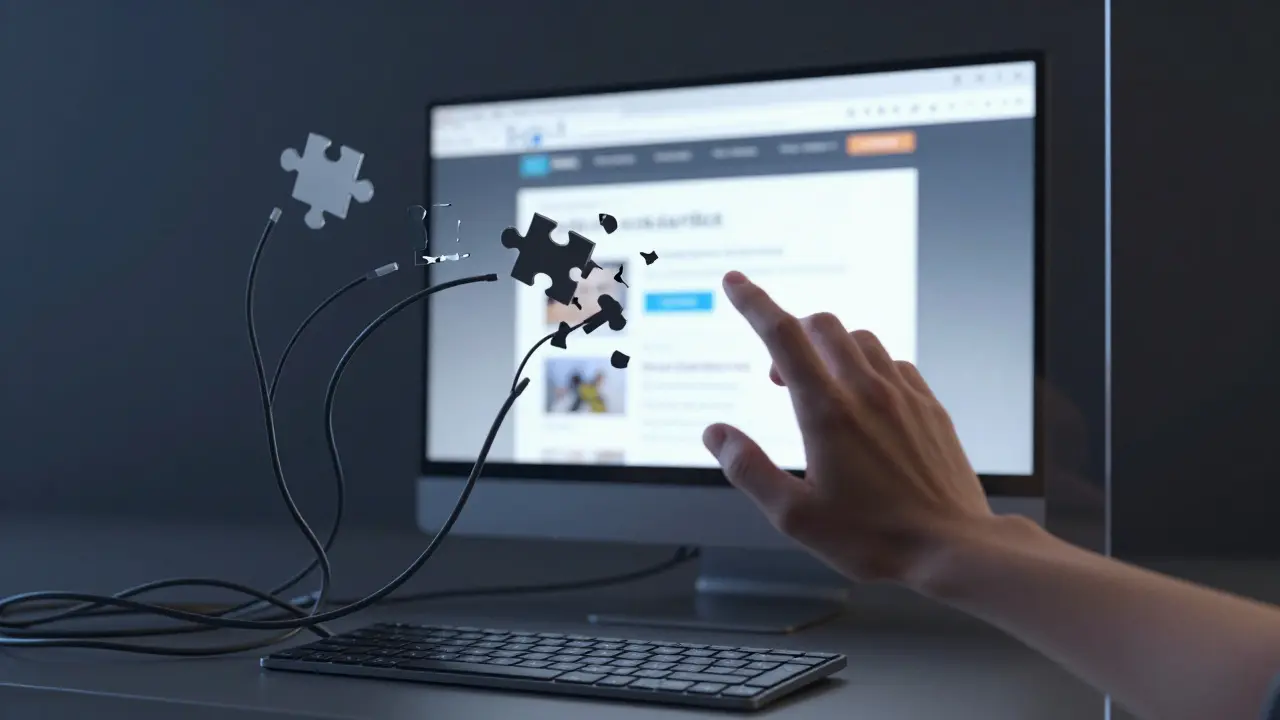
Imagine trying to fill out a complex tax form or navigate a dense textbook using only the Tab key on your keyboard. It sounds tedious, right? For millions of learners with motor disabilities, visual impairments, or temporary injuries, this isn't an imagination exercise-it’s their daily reality. If your online course doesn’t support smooth keyboard navigation, you aren't just creating friction; you are building a wall that keeps capable students from entering your classroom.
In 2026, accessibility is no longer a "nice-to-have" feature for educational platforms. It is a legal requirement in many jurisdictions and a fundamental ethical standard. Yet, too many Learning Management Systems (LMS) and custom course builders still rely heavily on mouse interactions. This guide breaks down exactly how to ensure your online courses are navigable by keyboard alone, satisfying both human needs and technical standards like WCAG 2.2.
The Core Principles of Keyboard-First Design
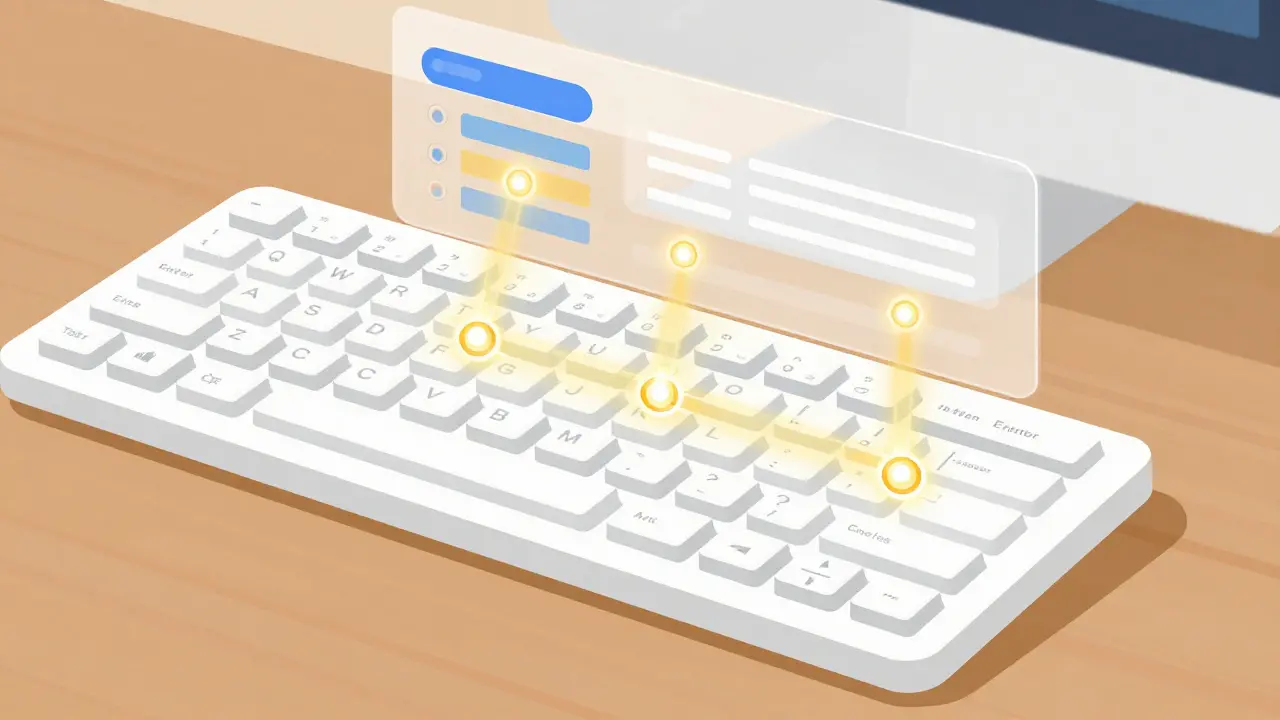
To build accessible courses, you need to understand how users interact with web content without a pointing device. The core mechanism here is the focus order. When a user presses the Tab key, the browser moves the focus from one interactive element to the next. If this order is logical-moving left to right, top to bottom-the user can predict where they will land next. If the order jumps randomly across the screen, the user gets lost immediately.
This means every button, link, form field, and media control must be reachable via the keyboard. But reachability is only half the battle. Visibility is the other half. You must provide a visible focus indicator-a clear outline or highlight-so the user knows exactly which element is active. Removing these default outlines with CSS for "aesthetic reasons" is one of the most common accessibility failures in modern web design.
Essential Keys Every Learner Needs to Master
Not all keyboard users type with their fingers. Many use assistive technologies like switch devices, eye-tracking software, or sip-and-puff systems. Therefore, your course interface should rely on standard, single-key commands rather than complex chord shortcuts (like Ctrl+Shift+Alt+A). Here are the critical keys your course must support:
- Tab / Shift+Tab: Moves focus forward and backward through interactive elements. This is the primary way users traverse a page.
- Enter / Space: Activates buttons, links, and toggles checkboxes. Consistency is key here; if Enter works on buttons, it should work on all clickable actions.
- Arrow Keys: Essential for navigating within groups of related controls, such as radio buttons, dropdown menus, or pagination links. Arrow keys allow fine-grained movement without jumping to unrelated parts of the page.
- Escape: Closes pop-ups, modals, or dropdowns. Users need a reliable way to exit a focused area without having to tab through every remaining element on the page.
- Home / End: Jumps to the beginning or end of a list or input field. This saves significant time when dealing with long text areas or extensive menus.
If your custom video player or quiz module requires a mouse hover to reveal options, it fails this test. Hover states are invisible to keyboard-only users. All interactive features must be triggerable via these standard keys.
Common Pitfalls in Online Course Interfaces
Even well-intentioned developers often introduce barriers unknowingly. Let’s look at three frequent offenders in e-learning environments.
1. The Trapping Modal When a student clicks "Start Quiz," a modal window often appears. If the focus does not move into that modal automatically, the student might try to tab through the background content, which is now dimmed and inactive. Worse, if the focus cannot escape the modal easily, the user is trapped. The solution is to trap focus *within* the modal while it is open, ensuring the Tab key cycles only through the modal's elements, and then restore focus to the triggering button when the modal closes.
2. Invisible Links
Many course designers use plain text styled as links but forget to give them proper semantic HTML tags (<a>). Screen readers ignore non-semantic text, and keyboard users cannot tab to it. Always use real anchor tags for navigation. Additionally, avoid vague link text like "Click here." Instead, use descriptive text like "Download Chapter 3 PDF" so screen reader users know what to expect before they activate the link.
3. Complex Forms Without Labels Quizzes and registration forms are major hurdles. Each input field must have a programmatically associated label. If you hide the visual label for space, ensure it remains available to screen readers using ARIA attributes or hidden HTML techniques. Without labels, a keyboard user hears nothing but "Edit Text" or "Combo Box," leaving them guessing what information is required.
Testing Your Course for Keyboard Accessibility
You don’t need expensive software to start testing. The best first step is to put away your mouse entirely. Try to complete a full lesson cycle-from logging in, watching a video, taking a quiz, to submitting feedback-using only your keyboard. Note every place where you get stuck or confused.
For more rigorous validation, use automated tools combined with manual review. Tools like WAVE or Axe DevTools can identify missing focus indicators or improper heading structures. However, automation catches only about 30-40% of accessibility issues. Human testing is irreplaceable.
Consider recruiting beta testers who use assistive technology. In New Zealand, organizations like RNZIB (Royal New Zealand Foundation of the Blind) offer resources and communities where you might find willing testers. Their feedback will highlight nuances that scripts miss, such as whether the focus order makes logical sense in context.
Comparison: Mouse vs. Keyboard Interaction Models
Understanding the difference between these two interaction models helps in designing hybrid interfaces that work for everyone.
| Feature | Mouse-Dependent Design | Keyboard-Accessible Design |
|---|---|---|
| Navigation | Clicking links/buttons | Tbing through focusable elements |
| Visibility of Action | Hover effects show interactivity | Focus indicators (outlines) show active element |
| Menus/Dropdowns | Open on hover | Open on click/enter; close on Escape |
| Error Handling | Visual cues near fields | Announced by screen readers + visible focus shift |
| Media Controls | Small play/pause icons | Large, labeled buttons reachable via Tab |

Implementing Skip Links and Landmarks
Online courses often have repetitive headers, footers, and navigation bars. For a sighted mouse user, scrolling past these takes seconds. For a keyboard user, tabbing through ten menu items on every single page is exhausting and inefficient.
Solve this with Skip Links. These are hidden links at the very top of the page that become visible when focused. A typical skip link says "Skip to Main Content." When activated, it instantly moves the focus to the main article body, bypassing the navigation clutter. This simple addition can reduce cognitive load significantly.
Additionally, use ARIA landmarks correctly. Mark up your page sections with semantic HTML5 tags like <nav>, <main>, <aside>, and <footer>. Screen reader users can jump directly between these landmarks, much like skipping chapters in a book. Ensure each landmark has an accessible name if there are multiple instances (e.g., two different navigation menus).
Video and Multimedia Accessibility
Video is central to modern online learning, but it is also a major accessibility bottleneck. Standard video players often lack keyboard controls or have poorly labeled buttons. When embedding videos, ensure the player allows full keyboard operation. Users should be able to play, pause, seek, adjust volume, and access captions using only the keyboard.
Captions are mandatory, but they must be synchronized accurately. Auto-generated captions from platforms like YouTube or Vimeo are improving, but they often fail with technical terminology or speaker accents. Manual editing is still the gold standard for educational content. Furthermore, provide transcripts for all audio and video content. Transcripts benefit not only deaf and hard-of-hearing students but also those who prefer reading over listening or who are learning English as a second language.
Conclusion: Building for Everyone Benefits Everyone
Optimizing for keyboard navigation does more than comply with laws like the ADA or NZ’s Human Rights Act. It improves the experience for all users. Students working on slow connections, those using older hardware, or even busy professionals multitasking on mobile devices appreciate fast, efficient navigation. By removing the dependency on precise mouse movements, you create a cleaner, more robust, and universally usable learning environment. Start small: check your focus indicators, add skip links, and test your quizzes with the mouse turned off. The effort pays off in higher completion rates and broader inclusivity.
What is the most important key for keyboard navigation?
The Tab key is the most critical. It moves the focus sequentially through interactive elements on a page. If your site doesn't respond logically to the Tab key, keyboard navigation is broken.
Do I need to remove the default focus outline from buttons?
No. Never remove the default focus outline unless you replace it with another clear, high-contrast visual indicator. Keyboard users rely on this outline to see where they are on the page. Hiding it makes navigation impossible for many.
How do I test my website for keyboard accessibility?
Put away your mouse and try to navigate your entire site using only the Tab, Shift+Tab, Enter, and Arrow keys. Check if you can reach every interactive element and if the focus order makes logical sense. Use tools like WAVE or Axe for additional technical checks.
What is a skip link and why is it useful?
A skip link is a hidden link at the top of a page that allows users to jump directly to the main content, bypassing repetitive navigation menus. It saves time and reduces frustration for keyboard and screen reader users.
Are auto-generated captions enough for online courses?
They are a good starting point, but often insufficient for educational content due to errors in technical terms or accents. For professional online courses, manually edited captions and full transcripts are recommended to ensure accuracy and comprehension.
Does keyboard accessibility help non-disabled users?
Yes. It benefits power users who prefer keyboard shortcuts, people with temporary injuries (like a broken hand), and anyone using a device with limited touch capabilities. It generally leads to a faster, more efficient user experience for everyone.
What is WCAG 2.2?
WCAG 2.2 stands for Web Content Accessibility Guidelines version 2.2. It is the international standard for making web content accessible. It includes specific criteria for keyboard operability, focus visibility, and consistent navigation.
How do I handle dropdown menus for keyboard users?
Dropdown menus should open when the parent button receives focus and is activated (Enter/Space). Inside the menu, users should navigate options with Arrow keys and close the menu with the Escape key. Focus should return to the parent button upon closing.
Is it legal to have inaccessible online courses?
In many countries, including New Zealand under the Human Rights Act and the US under the ADA, providing inaccessible digital services to the public can be considered discrimination. While enforcement varies, the risk of legal action and reputational damage is significant.
What role do ARIA landmarks play in accessibility?
ARIA landmarks (like nav, main, footer) divide the page into logical regions. Screen reader users can jump between these landmarks quickly, similar to how sighted users scan headings. Proper use of landmarks greatly enhances navigation efficiency.