

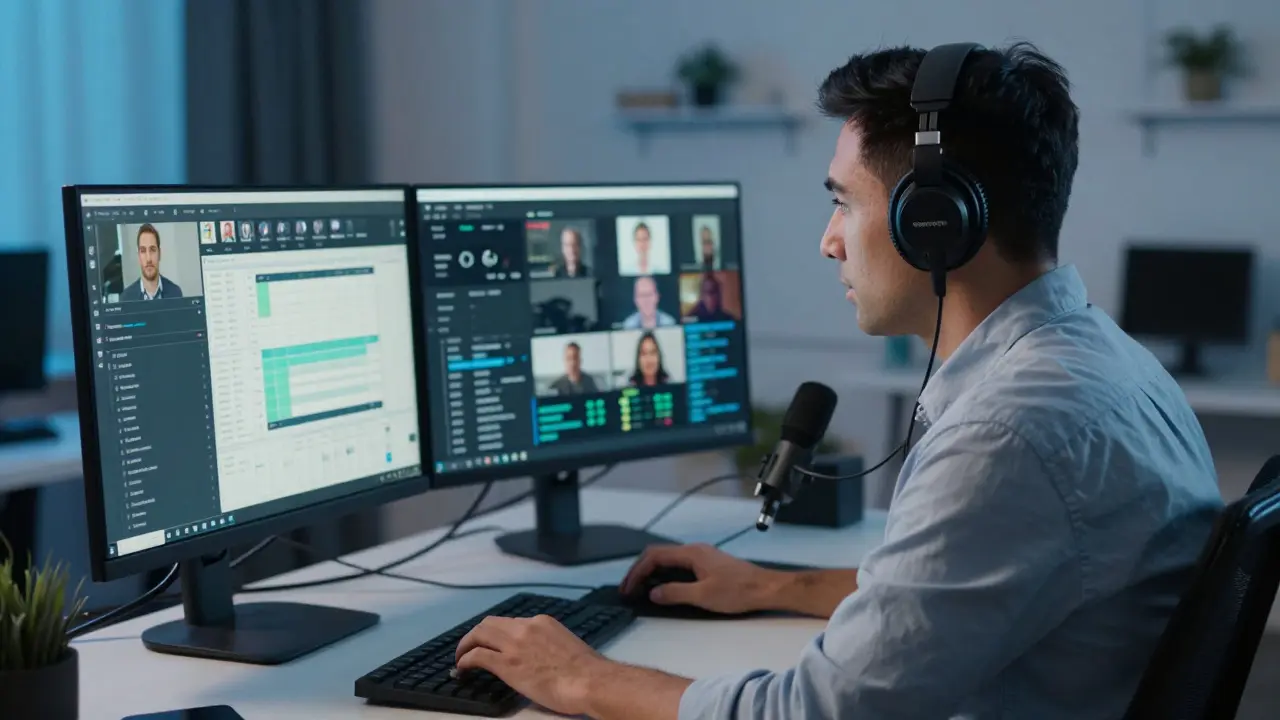
Imagine logging into a session expecting a tight-knit workshop, only to find yourself lost in a sea of 500 gray profile pictures. The chat is moving so fast you can’t read it, the audio is clipping, and your speaker looks confused because they can’t see who is raising their hand. This is the nightmare scenario for anyone running large-scale virtual events.
Hosting an event with hundreds of participants isn't just about hitting 'record' on a Zoom call. It requires a completely different architecture than small meetings. When you scale from 20 people to 200, or even 1,000, the dynamics shift from conversation to broadcast. You stop managing interactions and start managing infrastructure, attention, and flow. If you treat a massive webinar like a team huddle, you will lose your audience within ten minutes.
The Platform Choice: Broadcast vs. Interaction
The first decision you make dictates everything else. You need to choose between a platform built for broadcasting content to large audiences and one built for collaboration. For hundreds of participants, standard video conferencing tools often choke. They try to render too many video feeds, causing lag and battery drain.
If your goal is education or presentation, look at platforms designed for webinars. Tools like Zoom Webinar, GoToWebinar, or Microsoft Teams Live are optimized for this. They allow you to lock participant cameras by default, which reduces bandwidth strain. If you need more interactivity-like breakout rooms or networking-you might consider dedicated virtual event platforms like Hopin or Remo. These platforms simulate a physical venue with stages and lounge areas, but they require more technical setup.
Here is a quick rule of thumb: If interaction is secondary to content delivery, use a webinar tool. If interaction is the primary goal, you must cap your attendance or invest in a specialized virtual venue platform.
| Feature | Standard Video Conferencing (Zoom Meeting) | Webinar Platforms (Zoom Webinar/GoTo) | Virtual Event Venues (Hopin/Remo) |
|---|---|---|---|
| Max Participants | Up to 1,000 (with license) | Up to 10,000+ | Varies (often 500-5,000) |
| Video Feed Load | High (all users may have video) | Low (only hosts/presenters show video) | Medium (grid views in lounges) |
| Interactivity | High (breakouts, whiteboard) | Medium (Q&A, polls, chat) | High (networking, booths) |
| Best For | Workshops & Training | Keynotes & Lectures | Conferences & Networking |
Structuring the Agenda for Attention Spans
Human attention spans drop significantly in digital environments. In a physical room, if someone gets bored, they might check their phone discreetly. Online, checking their phone means leaving your event entirely. To keep hundreds of people engaged, you need to structure your agenda around "attention resets."
A common mistake is scheduling back-to-back hour-long presentations. Instead, break your event into 20-30 minute modules. Use the "Pomodoro" principle for events: intense focus followed by a short break. Between sessions, include 5-minute "buffer blocks" where no content is delivered. This allows participants to stretch, grab coffee, or process information without feeling rushed.
Vary the format constantly. Follow a keynote with a live poll. Follow a panel discussion with a Q&A session. Follow a demo with a breakout activity. This variety prevents cognitive fatigue. If you are teaching, use the "I do, We do, You do" model even at scale. Present a concept, ask a guided question via chat, then let them apply it in a small group.
The Role of Moderators and Community Managers
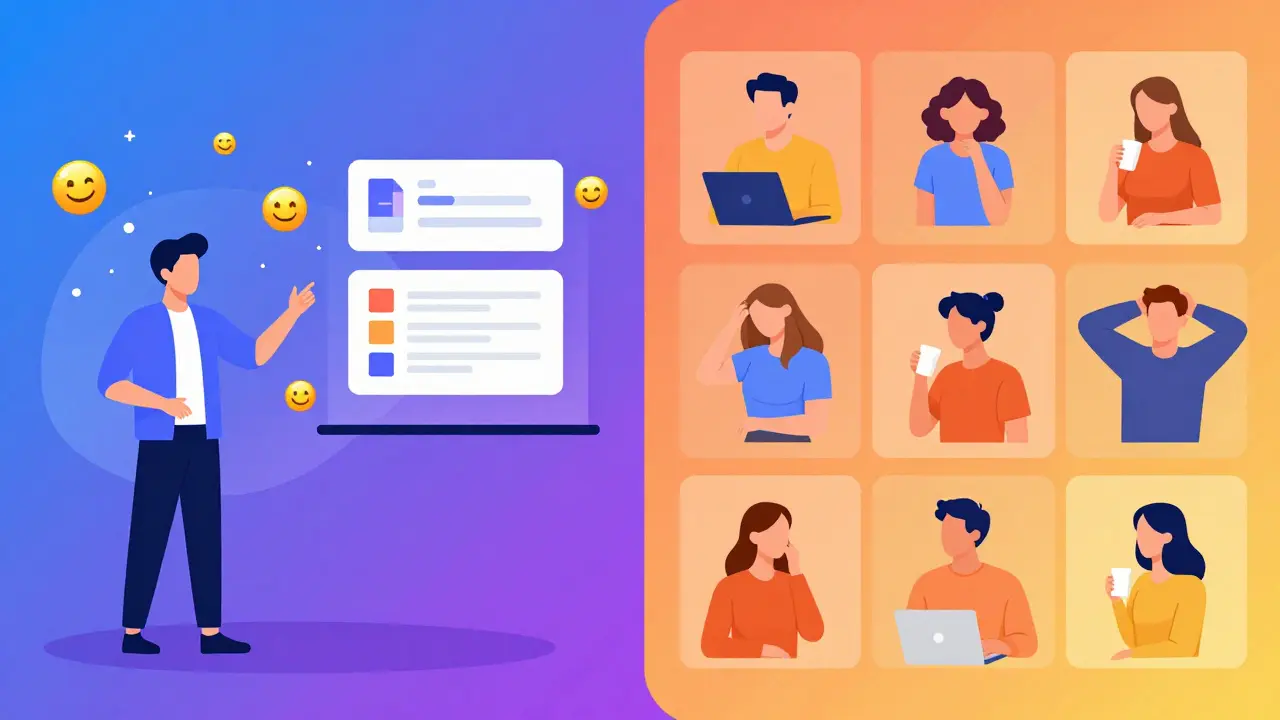
You cannot manage 500 people alone. Even if you are the best presenter in the world, you cannot watch the chat, answer questions, monitor technical issues, and present simultaneously. You need a dedicated team.
For every 100-150 participants, assign one moderator. Their job is not to present, but to facilitate. They should be pre-briefed on the agenda and key talking points. Their responsibilities include:
- Moderating Chat: Filtering out spam, highlighting good questions for the speaker, and keeping the tone positive.
- Technical Triage: Helping individuals who have audio issues privately, so they don't disrupt the main stage.
- Engagement Prompts: Posting ice-breaker questions during transitions to keep the energy up.
- Q&A Management: Collecting questions, removing duplicates, and feeding them to the speaker in order.
Think of moderators as the invisible hands that keep the machine running. Without them, the event feels chaotic and unmanaged.
Designing Interactive Elements That Scale
Interaction doesn't mean everyone needs to speak. In fact, in large groups, constant speaking creates noise. You need scalable interaction methods. Polls are excellent because they provide immediate data and make every participant feel heard without requiring them to unmute. Use live polling tools like Mentimeter or Slido, which integrate with most major platforms.
Breakout rooms are powerful but risky at scale. If you split 500 people into groups of 5, you create 100 separate rooms. Who manages those? Only use breakouts if you have enough moderators to float between rooms, or if the activity is self-guided with clear instructions posted in the chat. Another option is "reaction-based" interaction. Ask participants to use emojis (thumbs up, hearts) to vote or respond. This creates a visual sense of community without the logistical headache of managing audio.
Technical Preparation and Redundancy
Technology fails. It’s not a matter of if, but when. When you are hosting hundreds of people, a single point of failure can ruin the experience. You need redundancy.
First, ensure your internet connection is wired, not Wi-Fi. A dropped packet on Wi-Fi can cause audio stuttering that sounds terrible to 500 listeners. Second, have a backup device ready. If your laptop crashes, you should be able to switch to a tablet or phone instantly. Third, record locally. Don’t rely solely on the cloud recording feature of your platform. Local recordings save directly to your hard drive, ensuring you have a copy even if the internet cuts out completely.
Test your audio setup thoroughly. A bad microphone is worse than no microphone. Invest in a USB dynamic microphone or a headset with a noise-canceling mic. Test your lighting so you are visible and professional. Poor video quality distracts viewers; poor audio quality drives them away.
Post-Event Engagement and Data Analysis
The event doesn't end when you click "leave meeting." The real value often comes from how you handle the aftermath. Send a follow-up email within 24 hours while the memory is fresh. Include a link to the recording, slides, and any resources mentioned.
Analyze your data. Most platforms provide reports on attendance duration, poll responses, and engagement levels. Look for patterns. Did people leave during a specific session? Was the chat active during certain topics? Use this data to improve future events. If you notice high drop-off rates after 45 minutes, shorten your next sessions. If polls had low participation, change the timing or type of questions.
Finally, build a community. Create a Slack channel or LinkedIn group for attendees to continue discussions. This turns a one-time event into an ongoing relationship, increasing the likelihood that participants will return for your next large-scale gathering.
What is the ideal number of participants for a virtual event?
There is no single "ideal" number, as it depends on your goals. For high interaction and networking, keep groups under 50. For educational webinars, 200-500 is manageable with good moderation. For brand awareness or keynotes, platforms can handle thousands, but interaction will be minimal. Always align the size with your capacity to engage.
How do I prevent audio echo in large virtual meetings?
Echo usually occurs when participants have speakers on and microphones open. Instruct all participants to mute their microphones unless speaking. Use headphones or earbuds instead of computer speakers. Enable the "automatically mute participants upon entry" setting in your platform settings. As a host, you can also manually mute all participants at the start of the session.
Can I use Zoom for a conference with 1,000 people?
Yes, but you need a Zoom Webinar or Zoom Events license, not a standard Pro account. Standard Zoom Meetings cap at 100 participants unless you purchase additional licenses. Zoom Webinar allows up to 10,000 registrants and provides better controls for large audiences, such as locked chats and designated panelists.
What are the best practices for breakout rooms in large events?
Keep breakout sessions short (10-15 minutes). Provide clear, written instructions before sending people out. Assign a facilitator to each room if possible. Use random assignment to encourage new connections, or manual assignment if you want to group by topic or skill level. Always bring everyone back to the main room for debriefing.
How do I handle technical issues during a live stream?
Stay calm and communicate. If you experience a major issue, inform your audience immediately via chat or a co-host. Have a backup plan, such as switching to a pre-recorded segment or extending a Q&A session. Never freeze silently. Transparency builds trust, even when technology fails.