

Remember the panic of 2020? Teachers were frantically trying to figure out how to teach calculus or creative writing over a video call while their dogs barked in the background. It was chaotic. Fast forward to June 2026, and Microsoft Teams isn't just a survival tool anymore; it’s the backbone of modern hybrid education. But here is the problem: most schools still treat it like a glorified chat app. They miss out on the powerful features that actually make virtual classrooms work.
If you are setting up a virtual classroom today, you don’t need more Zoom links. You need a structured environment where assignments, communication, and collaboration live in one place. This guide cuts through the noise. We will walk you through setting up your Teams space from scratch and share the specific best practices that top educators use to keep students engaged without burning themselves out.
Setting Up Your Microsoft Teams Classroom Structure
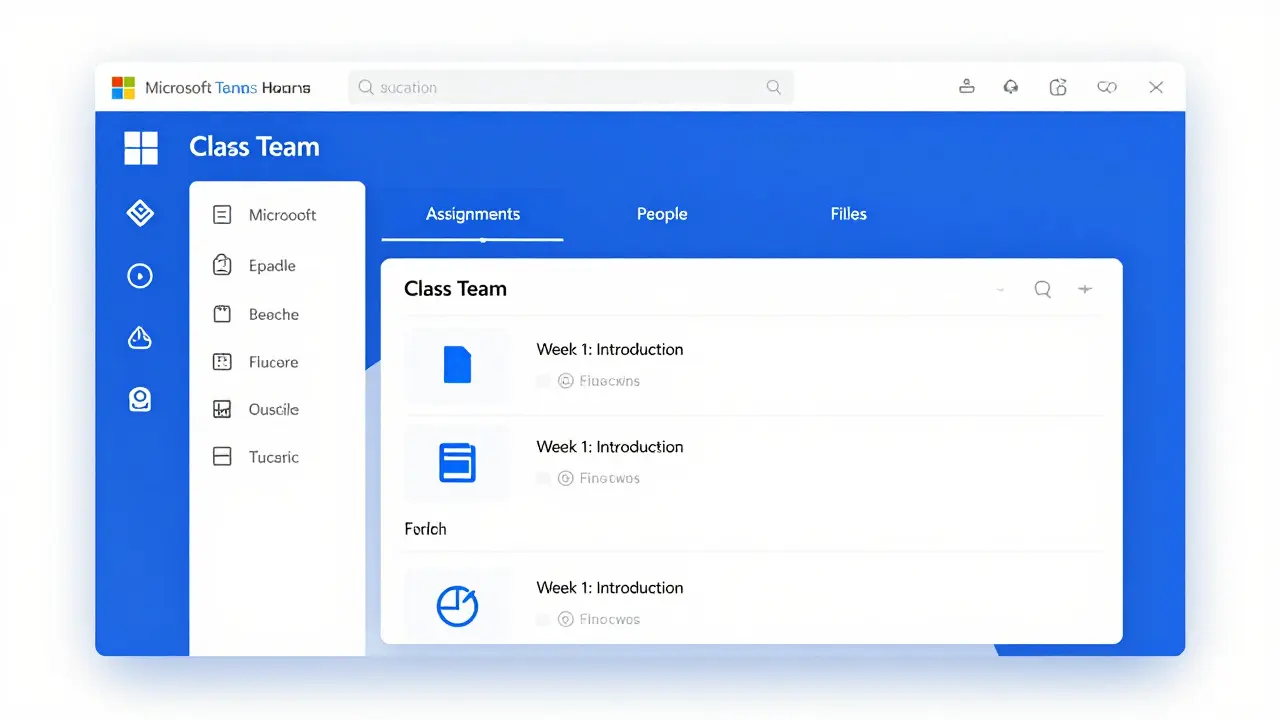
The biggest mistake new virtual teachers make is creating a standard "Team" for every class. It feels intuitive, but it creates administrative nightmares. Instead, you should use the dedicated Class Team feature within Microsoft Teams for Education. This structure automatically integrates with Microsoft 365 Education, which provides a suite of productivity tools tailored for schools.
Here is how to build a foundation that actually works:
- Create the Class Team: Go to the Teams sidebar, click "Join or create a team," and select "Create team." Choose the "Class" template. This instantly adds tabs for Assignments, People, and Planner, saving you hours of manual setup.
- Organize with Sections: Don't dump all files into one folder. Use the "Files" tab to create folders for each week or module. For example, "Week 1: Introduction," "Week 2: Core Concepts." Students navigate by topic, not by date, which reduces cognitive load.
- Set Clear Channel Rules: Create channels for different purposes. Keep the "General" channel for announcements only. Create a "Q&A" channel for student questions so important updates don't get buried in casual chatter. Add a "Resources" channel if you have guest speakers or external materials.
Once the skeleton is built, focus on the user experience. If a student has to click five times to find the homework link, they won’t do it. Make the path to success obvious. Pin the most critical resources to the top of the General channel. Use @mentions sparingly but effectively-@mentioning the whole class for an emergency alert is fine, but doing it for a simple reminder causes notification fatigue.
Mastering Live Lessons and Engagement
A static lecture delivered via video call is the fastest way to lose a virtual audience. In 2026, attention spans are shorter than ever. You need to turn passive listeners into active participants. Microsoft Teams offers several tools to achieve this, but you have to know how to trigger them at the right moment.
Start with the Live Events feature. Unlike standard meetings, Live Events allow for large-scale broadcasts with moderated Q&A. Use this for weekly lectures or guest speakers. However, for smaller group interactions, stick to standard Meetings but leverage these engagement tactics:
- Polls and Quizzes: Launch a quick poll every 10-15 minutes. Ask a conceptual question, not just a yes/no check-in. See results in real-time. If 60% of the class gets it wrong, stop and re-explain. This immediate feedback loop is gold for formative assessment.
- Breakout Rooms: Use these for collaborative problem-solving. Assign specific roles to students in each room (e.g., scribe, presenter, timekeeper). Give them a clear task with a deliverable, like a shared OneNote page or a whiteboard sketch. Without structure, breakout rooms become social lounges.
- Interactive Whiteboards: Share your screen with the Miro or Microsoft Whiteboard integration. Let students draw diagrams or brainstorm ideas visually. Visual learners thrive here, and it breaks the monotony of talking heads.
Pro tip: Record your sessions. Not because students might miss them, but because the recording becomes a searchable asset. Teams automatically transcribes meetings. A student can search the transcript for "photosynthesis" and jump straight to that minute in the video. This self-paced element supports diverse learning needs.
Streamlining Assignments and Feedback
The "Assignments" tab in Teams is often underutilized. Many teachers still email PDFs or use third-party LMS platforms, creating friction. Integrating everything into Teams keeps the workflow contained. Here is how to optimize your assignment strategy:
| Feature | How to Use It | Benefit |
|---|---|---|
| Rubrics | Attach a detailed rubric to every assignment creation. | Students know exactly what is expected; grading becomes faster and more consistent. |
| OneDrive Integration | Require submissions as editable Word or PowerPoint files. | You can provide inline comments and track changes directly in the document. |
| Auto-Grading | Use Quiz Maker for multiple-choice sections. | Instant feedback for students; saves you hours of manual grading. |
| Differentiated Groups | Create private groups within the class for targeted support. | Send specific resources or extensions to small groups without notifying everyone. |
Feedback is where the real learning happens. Avoid generic comments like "Good job." Use the voice comment feature in Teams to record a 30-second audio note on their submission. Hearing your tone adds a personal touch that text lacks. It also speeds up your grading process significantly. When students receive feedback, encourage them to reply with a brief reflection on how they plan to improve. This closes the feedback loop.
Maintaining Student Well-being and Digital Etiquette
Virtual learning can feel isolating. The screen creates a barrier that makes it hard to read body language or sense the room's energy. As an educator, you must intentionally design for connection. This isn't about forced fun; it's about psychological safety.
Establish clear digital etiquette early on. Create a "Community Agreement" document pinned in the General channel. Include rules about camera usage (encourage it, but don't mandate it due to privacy concerns), microphone muting, and respectful chat behavior. Model this behavior yourself. Apologize if you interrupt someone. Thank students for their contributions.
Build in "soft start" times. Begin classes 5 minutes early with casual conversation or a non-academic icebreaker. This allows students to log in, test their tech, and ease into the session. It reduces anxiety and builds rapport. Also, be mindful of screen fatigue. Follow the 20-20-20 rule: every 20 minutes, look at something 20 feet away for 20 seconds. Encourage students to take micro-breaks during long modules.
Monitor engagement metrics subtly. Teams shows you who attended meetings and when files were viewed. If a student hasn't opened a resource in two weeks, reach out privately. A simple "Hey, I noticed you haven't accessed the Week 4 notes. Is everything okay?" can prevent a crisis before it happens. Early intervention is key in virtual environments.
Troubleshooting Common Technical Issues
Even the best-planned lessons can hit technical snags. Having a troubleshooting protocol ready prevents frustration from derailing your class. Here are the most common issues and quick fixes:
- Audio Lag or Echo: Usually caused by multiple devices playing sound. Ask students to wear headphones. If echo persists, have them mute their microphone immediately.
- Video Freezing: Often a bandwidth issue. Suggest lowering video quality settings in Teams. Encourage students to close other browser tabs or apps consuming data.
- Assignment Submission Errors: If a file won't upload, try converting it to PDF first. Check file size limits (usually 250MB for direct uploads). For larger files, use OneDrive links instead.
- Access Denied: Ensure students are signed in with their school email, not a personal Microsoft account. Sync issues between the app and web version can occur; advise restarting the app.
Keep a "Tech Support" channel or a designated Discord server for urgent IT help. Empower older students or tech-savvy peers to help troubleshoot minor issues. This builds community and reduces your workload. Always have a backup plan: if Teams goes down, switch to a phone conference line or send instructions via email. Resilience is part of the virtual teaching toolkit.
Measuring Success and Iterating
How do you know if your virtual classroom is working? Look beyond grades. Gather qualitative feedback regularly. Use anonymous surveys at the end of each month to ask: What worked? What didn't? What would you change? Act on this feedback visibly. If students say breakout rooms are confusing, simplify the instructions next time. Show them their voices matter.
Analyze your own performance. Review recordings of your lectures. Are you talking too much? Are you pausing enough for processing time? Adjust your pacing. Virtual teaching is a skill that improves with iteration. Don't aim for perfection in the first semester. Aim for continuous improvement.
Finally, collaborate with other educators. Join professional learning communities focused on EdTech. Share templates, discuss challenges, and celebrate wins. You are not alone in this journey. The landscape of virtual learning evolves rapidly, staying connected with peers ensures you adapt quickly to new features and pedagogical shifts.
Is Microsoft Teams free for students?
Yes, Microsoft Teams is free for students and educators through Microsoft 365 Education. Schools need to have a valid license agreement with Microsoft, but individual users do not pay out-of-pocket. Features include unlimited cloud storage for classes, advanced security, and access to Office apps like Word and Excel.
Can I use Microsoft Teams without a school email?
While you can download the app, full functionality in an educational setting requires a school-provided account. Personal Microsoft accounts cannot join Class Teams created by educators. If you are a parent or observer, you may be granted limited access via a guest invitation, but you won't have submission privileges.
How do I protect student privacy in Teams?
Microsoft Teams for Education complies with FERPA and GDPR standards. To further protect privacy, disable public sharing links in OneDrive settings, restrict who can message members in the class, and avoid collecting sensitive personal data in chats. Always remind students never to share passwords or personal addresses in the platform.
What is the difference between a Team and a Channel?
A Team is the main container for a class, containing all members, files, and conversations. Channels are sub-sections within a Team used to organize topics. Think of a Team as a house and Channels as rooms. You might have a "General" room for announcements and a "Project Alpha" room for specific group work.
How many students can join a Teams meeting?
Standard Microsoft 365 Education licenses support up to 300 participants in a regular meeting. For larger events like assemblies, Live Events can support up to 10,000 attendees. However, for effective interaction, keeping interactive sessions under 50 students is recommended for better engagement management.
Can students submit assignments late in Teams?
By default, the Assignments app allows late submissions unless the teacher explicitly disables this option. You can set a "close date" after which no submissions are accepted. It is generally good practice to allow late submissions with a penalty, rather than blocking them entirely, to accommodate technical issues or emergencies.
Does Teams work offline?
Limited functionality is available offline. Students can view downloaded files and draft messages, but they cannot join live meetings, submit assignments, or sync changes until they reconnect. Educators should always provide downloadable versions of critical materials and clear instructions for offline work scenarios.