

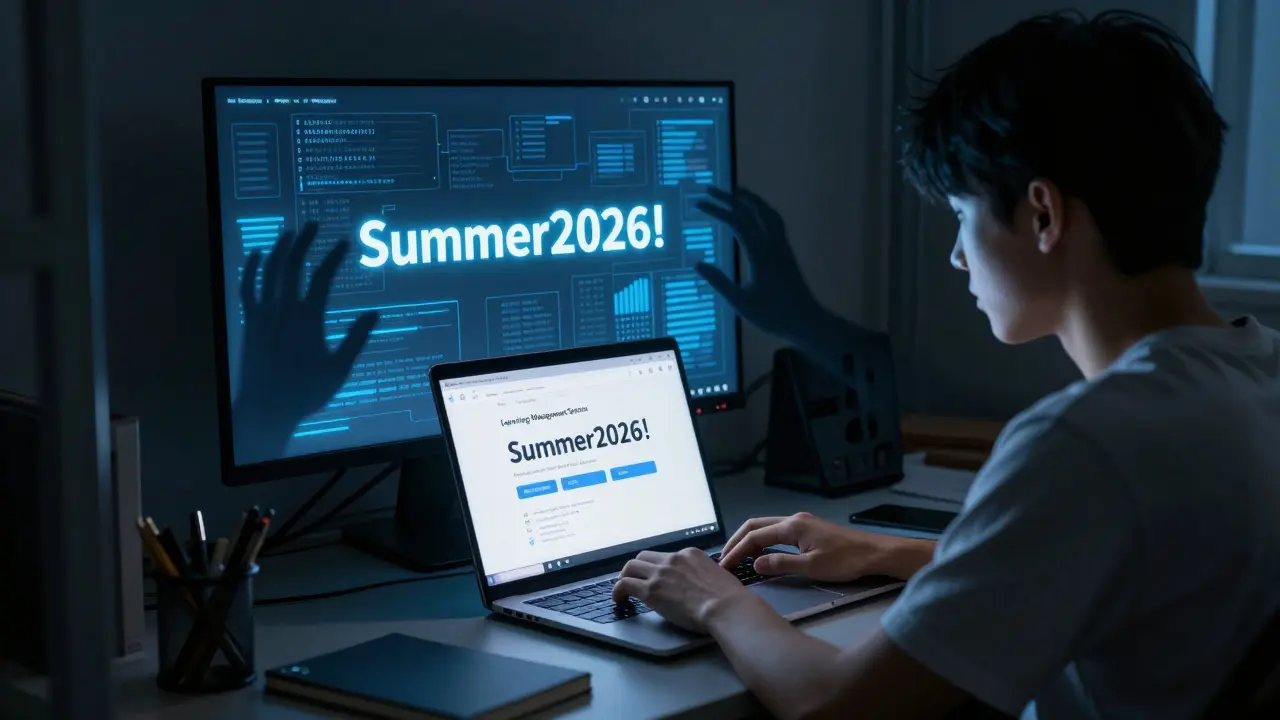
Every day, students and teachers log into learning platforms like Moodle, Canvas, or Blackboard. But how many of them use passwords that can be cracked in seconds? Or skip extra security steps because they’re ‘too annoying’? If your LMS password is Summer2026! or worse - password123 - you’re not just risking your own account. You’re giving attackers a backdoor into your entire school or university system.
Why LMS Passwords Are a Big Target
Learning Management Systems hold more than just grades and assignments. They store personal emails, student IDs, financial aid details, and sometimes even video recordings of class sessions. Hackers know this. In 2024, over 1,200 educational institutions worldwide reported breaches tied to weak or reused passwords, according to the Education Sector Cybersecurity Alliance. Most of these weren’t high-tech attacks. They were simple credential stuffing - using passwords stolen from other sites to log in here.Why does it work so well? Because people reuse passwords. A 2025 survey by the New Zealand Ministry of Education found that 68% of teachers used the same password for their LMS as they did for their personal email. That’s not just careless - it’s dangerous.
What Makes a Strong Password?
Forget rules like ‘must include a symbol and a number.’ Those are outdated. The real key is length and randomness.A strong password isn’t P@ssw0rd123. It’s something like BlueCoffeeMug$RainyTuesday. That’s 24 characters long, no dictionary words in a row, and impossible to guess. It’s also easy to remember if you build it from a personal phrase - not a pet’s name or birthdate.
Here’s what works:
- Use at least 12 characters - 16 is better.
- Avoid personal info: birthdays, names, addresses.
- Don’t reuse passwords across platforms.
- Use a passphrase: four random words with numbers or symbols mixed in.
Example: Train#Bike42Guitar$Moon is far stronger than Summer2026! and just as easy to type. Password managers like Bitwarden or 1Password help you generate and store these without having to memorize them.
Multi-Factor Authentication Isn’t Optional - It’s Essential
A strong password is only half the battle. If someone steals it, they’re in. That’s why multi-factor authentication (MFA) is non-negotiable for LMS users.MFA adds a second step after you type your password. It could be:
- A code sent to your phone via SMS or authenticator app
- A push notification on your phone
- A fingerprint or face scan
- A hardware key like a YubiKey
Google found in 2023 that MFA blocked 99.9% of automated attacks. That’s not a suggestion - it’s a shield. And it’s free. Most LMS platforms support MFA out of the box. If your school hasn’t turned it on for staff and students, ask why.
Some people say, ‘I don’t need it - I’m not a target.’ But you are. Attackers don’t care who you are. They scan for any vulnerable account. Once inside, they can change grades, send phishing emails to other users, or even lock everyone out until a ransom is paid.
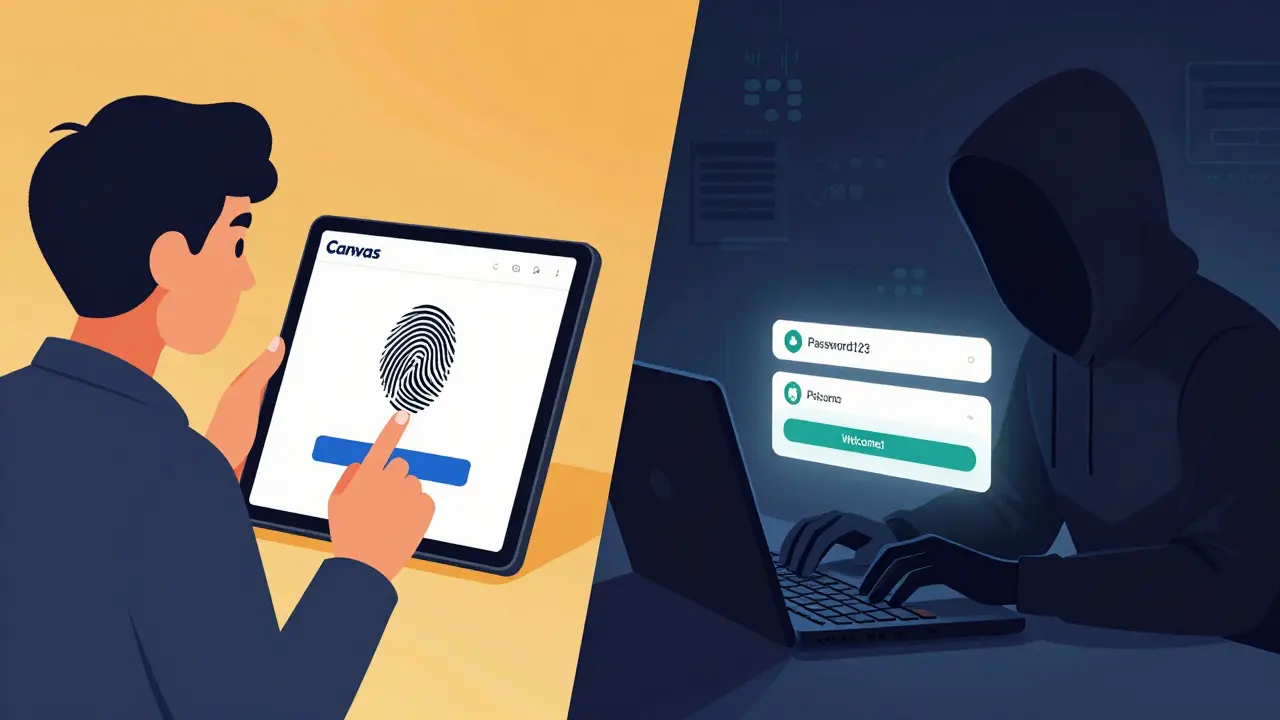
How LMS Providers Are Improving Authentication
Leading platforms are moving beyond passwords entirely. Canvas now supports WebAuthn - a standard that lets you log in with a fingerprint or security key instead of typing anything. Moodle has integrated SAML for single sign-on with institutional accounts. Blackboard allows biometric login on mobile apps.These aren’t just fancy features. They’re responses to real threats. In 2025, a university in Christchurch lost access to its LMS for three days after a phishing attack compromised 12 staff passwords. The fix? They rolled out hardware keys to all faculty. No more passwords. No more breaches.
What You Can Do Today
You don’t need IT staff to make your account safer. Here’s your action plan:- Check your password: Go to haveibeenpwned.com (yes, it’s safe) and enter your email. If it shows up, change that password immediately.
- Enable MFA: Go to your LMS profile settings. Look for ‘Security,’ ‘Two-Factor Authentication,’ or ‘Login Verification.’ Turn it on. Use an authenticator app like Google Authenticator or Authy - not SMS, if possible.
- Use a password manager: Install one on your phone and computer. Let it create and store your passwords. You only need to remember one master password.
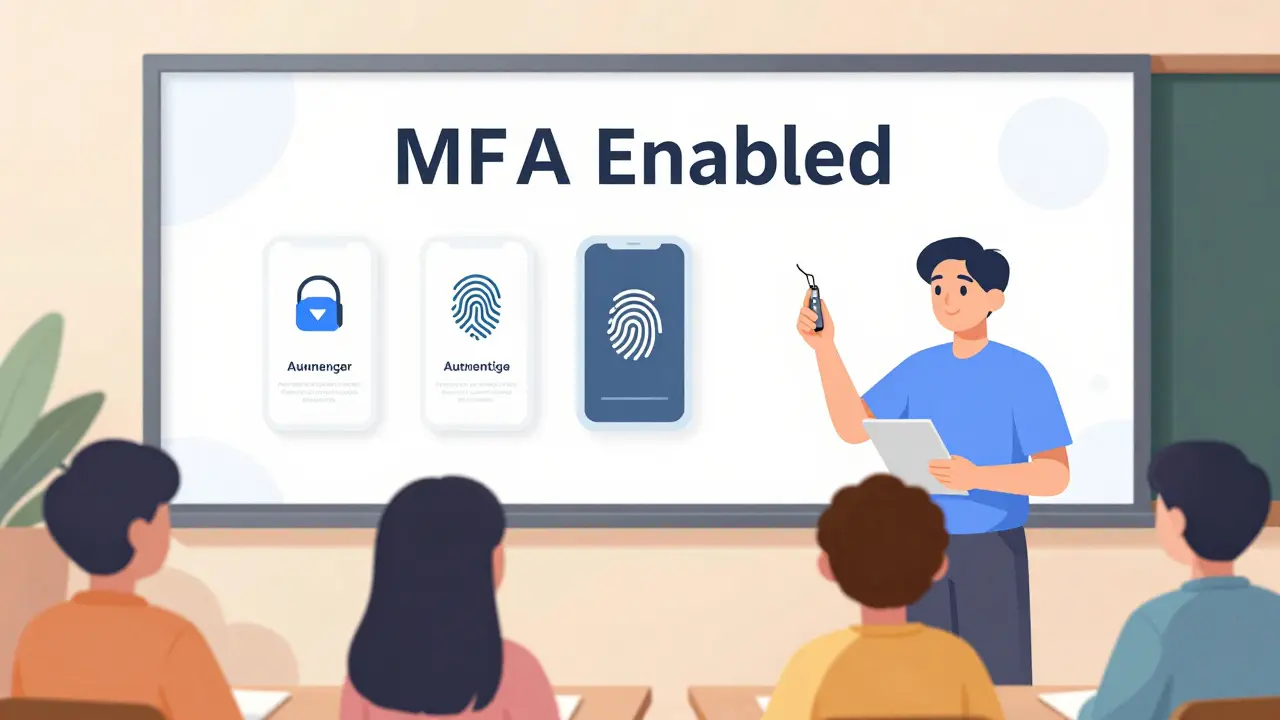
- Teach your students: If you’re an instructor, spend five minutes in your first class showing them how to set up MFA. Make it part of your digital literacy checklist.
Common Mistakes and How to Avoid Them
People keep making the same errors - even after breaches. Here are the top three:- Mistake: Using ‘Password123’ or ‘Welcome1’
Fix: Use a password manager. It won’t let you pick weak ones. - Mistake: Turning off MFA because it’s ‘too slow’
Fix: Use an authenticator app. It takes 3 seconds. You’ll forget it’s even there. - Mistake: Writing passwords on sticky notes or saving them in a plain text file
Fix: Password managers encrypt your data. Even if your laptop is stolen, your passwords stay locked.
One teacher in Wellington used to write her LMS password on a Post-it under her keyboard. After her account was used to send spam to 300 students, she switched to a hardware key. Now she says, ‘I don’t even think about login anymore. It just works.’
What Schools Should Do
Individual users can only do so much. Institutions need to step up:- Require MFA for all staff and students - no exceptions.
- Block password reuse across systems.
- Provide training on password security during orientation.
- Offer free password managers to users.
- Monitor for unusual login attempts (like multiple failed tries from overseas).
Some schools in Australia started mandating MFA in 2024. Within six months, credential-based attacks dropped by 94%. That’s not luck. That’s policy.
Final Thought: Security Is a Habit, Not a Feature
You wouldn’t leave your front door unlocked because you ‘don’t expect thieves.’ Yet many people treat their LMS accounts the same way. Passwords and MFA aren’t IT department chores. They’re personal safety tools - just like locking your bike or wearing a seatbelt.The next time you log in, ask yourself: Is this enough? If you’re still typing the same password you used five years ago - it’s not.
What’s the best way to create a strong password for my LMS?
Use a passphrase made of four random words with numbers or symbols mixed in - like ‘Train#Bike42Guitar$Moon’. Avoid personal info, reuse, or common patterns. Use a password manager to generate and store it so you don’t have to remember it.
Is SMS-based two-factor authentication safe for LMS accounts?
It’s better than nothing, but not ideal. Attackers can intercept SMS codes through SIM-swapping scams. Use an authenticator app like Google Authenticator or Authy instead. They work offline and are much harder to hack.
Can I use biometrics like fingerprint or face ID for my LMS?
Yes - if your LMS supports it. Canvas, Blackboard, and Moodle have added biometric login options for mobile apps. These use your device’s built-in sensors and are more secure than passwords. Check your app settings under ‘Security’ or ‘Login Options.’
What should I do if I think my LMS account has been hacked?
Change your password immediately, then enable MFA if it’s not already on. Notify your school’s IT team. Check your sent messages or grades for changes. If you reused that password elsewhere, change those too. Run a scan on your device for malware.
Why do schools still allow weak passwords if they’re so risky?
Many schools rely on old LMS systems that don’t enforce strong password rules. Others lack the budget or staff to roll out better security. But that’s changing. Newer platforms require stronger passwords by default, and governments are pushing for mandatory MFA in education. Ask your institution to upgrade.
Comments
kelvin kind
Just turned on MFA yesterday. Took 30 seconds. Life’s better now.
michael Melanson
I used to think password managers were for nerds. Then I got phished. Now I use Bitwarden and never look back. Seriously, if you’re still typing passwords by hand, you’re playing Russian roulette with your grades.
lucia burton
The structural vulnerability in institutional LMS authentication frameworks is not merely a technical deficit-it’s a systemic failure of digital hygiene education. We’re still operating on a paradigm rooted in the early 2000s, where complexity was measured in character substitution rather than entropy density. The shift to passphrase-based authentication with cryptographically sound entropy sources represents not just an improvement but an evolutionary necessity. And let’s not ignore the sociotechnical component: without mandatory institutional enforcement of MFA via FIDO2/WebAuthn, we’re simply delaying the inevitable breach cycle. The fact that 68% of educators reuse credentials across platforms isn’t negligence-it’s a symptom of a broken support ecosystem.
Denise Young
Oh wow, a post that doesn’t say ‘just use a password manager’ like it’s magic fairy dust. Refreshing. But let’s be real-most schools still run on Windows XP-era LMS software that doesn’t even support MFA properly. I had to beg my district’s IT guy for two years just to get Google Authenticator enabled. He said, ‘We don’t have time to train teachers.’ So now I use a YubiKey. It’s the only thing that’s kept my gradebook from being turned into a crypto-mining rig. Also, if your school still uses SMS for 2FA, please slap them. Hard.
Sam Rittenhouse
I’ve seen students get locked out of their accounts because they used their dog’s name + graduation year. I’ve seen teachers write passwords on sticky notes. I’ve seen entire departments compromised because one person clicked a phishing link. This isn’t about being tech-savvy. It’s about being human. And if we can teach kids to tie their shoes, we can teach them to use an authenticator app. It’s not hard. It’s just not prioritized. Let’s start treating digital safety like fire drills-not an afterthought.
Peter Reynolds
password manager works. mfa is good. dont reuse. its simple. schools should do more. but people dont care until something happens
Fred Edwords
It is imperative to note that the use of non-alphanumeric character substitution (e.g., @ for a, 3 for e) is not only ineffective but also counterproductive, as it is explicitly accounted for in modern password-cracking dictionaries. Furthermore, the recommendation to use passphrases composed of four or more random words-preferably drawn from a sufficiently large entropy pool-is not merely advisable; it is the only statistically defensible method of password construction under current computational attack paradigms. Additionally, the deployment of hardware-based authentication tokens (e.g., FIDO2-compliant devices) remains the gold standard for resistance to phishing and credential stuffing attacks, and should be institutionalized without exception.
Sarah McWhirter
Let’s be honest-this whole ‘strong password’ thing is a distraction. The real issue? Your school’s LMS is probably owned by some private edtech company that sells your data to advertisers. They don’t care if your password is ‘Train#Bike42Guitar$Moon’-they’ve already got your kid’s reading level, your attendance history, and your search queries. MFA won’t stop them. What you need is to boycott the whole system. Or at least use a burner email. Or better yet-stop using LMS entirely. Teach your kids offline. They’ll thank you in 20 years when they’re not tracked from cradle to college.
Ananya Sharma
Everyone’s obsessed with passwords and MFA like it’s some kind of panacea. But you know what’s really dangerous? The fact that these platforms are designed to be addictive, surveillance-heavy, and pedagogically bankrupt. Students are being forced to log in to corporate platforms that monitor their keystrokes, track their login times, and analyze their typing patterns to ‘predict engagement.’ And you’re worried about whether they used ‘Summer2026!’? That’s like worrying about a leaky faucet while your house is on fire. The real problem is institutional control disguised as security. If you want real safety, stop using centralized LMS. Use decentralized tools. Use local servers. Use paper. Anything but this corporate surveillance trap.
Kenny Stockman
My wife’s a high school teacher. She used to write her password on her planner. Now she uses a YubiKey. Says she forgets it’s even there. Best upgrade she ever made. No more panic when she forgets her laptop.
Zach Beggs
I just checked haveibeenpwned.com and my school email was in three breaches. Changed my password today. Enabled MFA. Didn’t even need IT. Took five minutes. If you haven’t done this yet, do it now. Seriously.
michael Melanson
Just saw someone reply saying ‘just use paper.’ That’s cute. Until you’re trying to submit a 50-page research paper at 2 a.m. and your printer dies. Or your kid’s teacher emails you a grade correction and you can’t log in because you ‘forgot’ your password written on a Post-it. Tech isn’t perfect, but it’s better than chaos.