

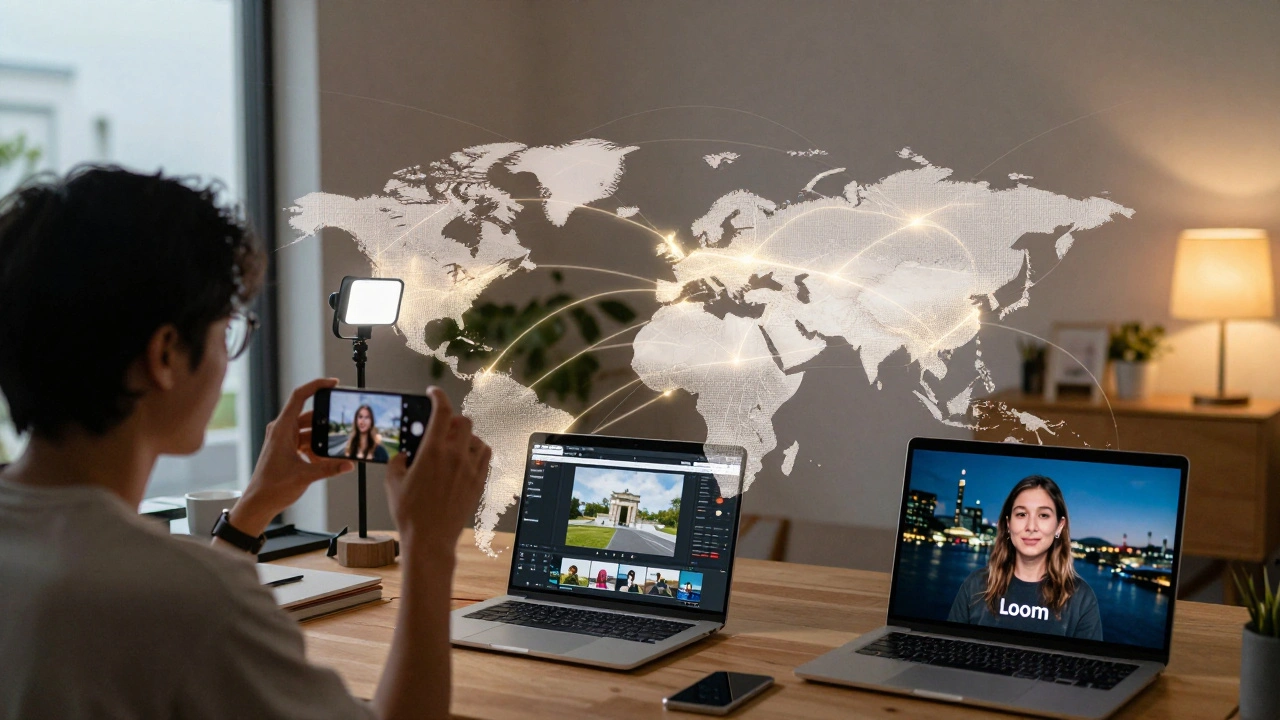
Imagine this: your team is spread across six time zones. One person is filming in Tokyo at 6 a.m., another is editing in Berlin at 3 p.m., and your director is reviewing footage from Auckland at midnight. No studio. No shared office. Just laptops, smartphones, and a shared drive. This isn’t science fiction-it’s what remote video production looks like in 2025.
Why Remote Video Production Isn’t Just a Trend Anymore
Five years ago, remote video production was a workaround for pandemic lockdowns. Today, it’s the default for companies that want to scale content without hiring full-time crews. A 2024 survey by Vidyard found that 78% of marketing teams now produce at least half their video content remotely. Why? Because talent doesn’t live in one city. A great scriptwriter might be in Lisbon. Your best cinematographer could be in Manila. Your editor might be in Chicago. Forcing everyone to relocate kills creativity and drains budgets.But remote doesn’t mean low quality. Teams using the right tools and workflows are delivering broadcast-grade videos-sometimes better than in-person shoots. The key? Structure. Without a shared physical space, you need clear systems for everything: planning, shooting, syncing, editing, and feedback.
Essential Gear for Remote Filming (No Studio Required)
You don’t need a $20,000 camera rig to make professional video. Most distributed teams use what’s already in their homes:- Smartphones-iPhone 15 Pro and Samsung Galaxy S24 Ultra capture 4K HDR footage with cinematic color profiles. Many editors now start projects in Final Cut Pro or DaVinci Resolve using phone footage.
- Portable microphones-Rode Wireless GO II or Saramonic Blink 500 B2 give clean audio without bulky setups. Always record audio separately from video when possible.
- Clip-on LED lights-Lume Cube Panel or Elgato Key Light Air fit in a backpack and plug into USB-C. Natural light is great, but inconsistent. A small, adjustable light solves 90% of indoor lighting issues.
- Stabilizers-DJI Osmo Mobile 7 or Zhiyun Crane 4S help smooth out shaky handheld shots. Even if someone’s filming on a kitchen counter, stabilization makes it look intentional.
Pro tip: Send a simple gear checklist to every team member before shoot day. Include recommended apps, file formats, and naming conventions. No one should guess what “IMG_001.MOV” means.
Building a Remote Video Workflow That Actually Works
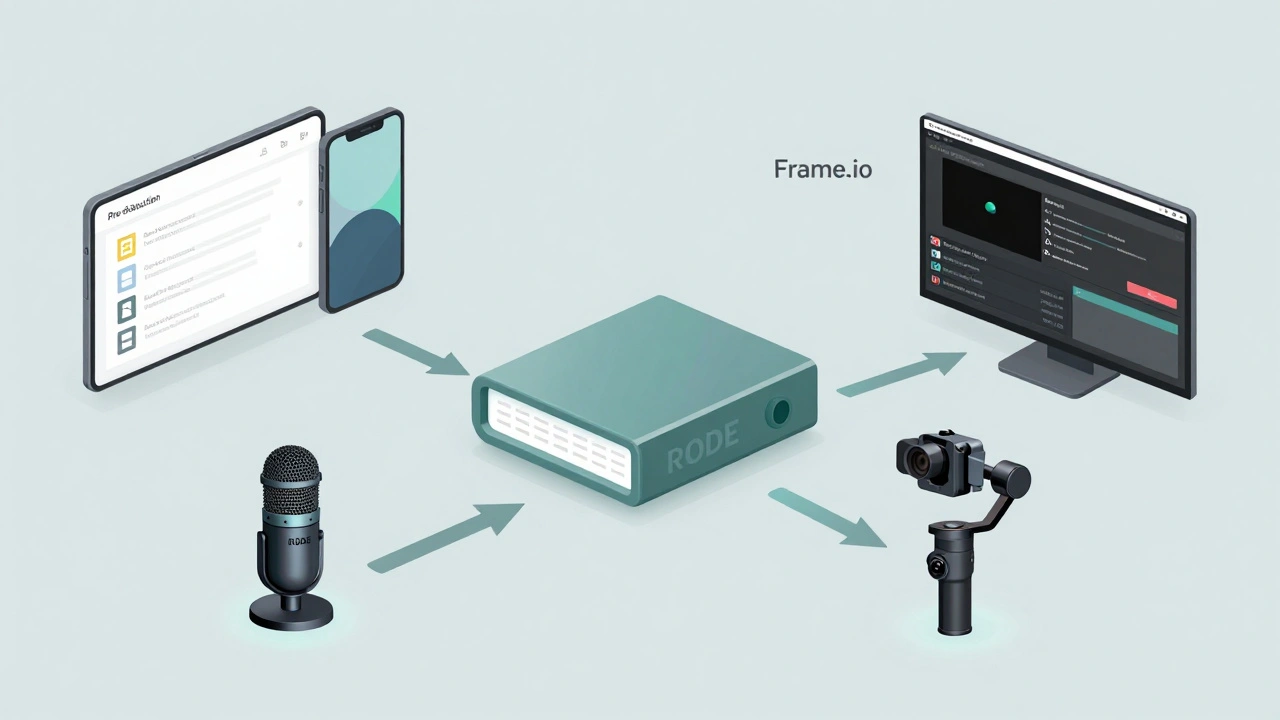
Without a shared editing suite, your workflow needs to be foolproof. Here’s what a high-performing team uses:- Pre-production-Use Notion or Airtable to store scripts, shot lists, and talent briefs. Attach reference videos so everyone sees the same tone.
- Shooting-Team members film using the same settings: 4K 30fps, Log or Flat profile, and WAV audio files. Use a shared Google Drive folder with a naming rule: ProjectName_Date_Location_Talent_01.
- Syncing-Upload footage to Frame.io or WeTransfer. Never rely on Dropbox or OneDrive for raw video-it’s too slow and unreliable.
- Editing-Assign one editor to build the rough cut. Others leave time-stamped comments directly in Frame.io. No more “I think the second part feels off.” Instead: “00:47-can we trim 3 seconds here? The pause feels awkward.”
- Feedback-Use Loom or Vimeo to record short video responses. Saying “this looks wrong” in a Slack message leads to confusion. Showing it in a 90-second video cuts feedback time in half.
- Final delivery-Export in H.265 MP4 at 1080p for web, 4K ProRes for archiving. Always include a .srt subtitle file. Accessibility isn’t optional anymore.
Teams that stick to this process cut revision rounds by 60%. That’s 2 weeks saved on a 4-week project.
Time Zone Challenges? Here’s How to Beat Them
You can’t have a live Zoom call at 2 a.m. in Singapore and 8 p.m. in New York. So don’t try.Instead, use asynchronous communication as your backbone:
- Record daily 5-minute video updates using Loom. Upload them to a shared “Daily Sync” folder.
- Use Clockwise or Reclaim.ai to auto-schedule overlapping work hours. Even 90 minutes of real-time overlap per day is enough for quick decisions.
- Set deadlines around time zones. If the editor is in India, don’t ask for feedback by 9 a.m. their time if the director is in California and sleeps until noon.
- Use a shared global calendar with color-coded time zones. Google Calendar does this automatically if you add locations.
One team we worked with in Vancouver, Lagos, and Seoul reduced meeting time from 12 hours to 3 hours per week-just by switching to video updates and comment-based feedback. They got more done, and no one felt burned out.
Common Mistakes (And How to Avoid Them)
Remote video production seems simple until you hit these traps:- Using different frame rates-One person shoots at 24fps, another at 30fps. Your edit breaks. Solution: Mandate 30fps for all projects unless artistic choice says otherwise.
- Bad audio-Wind noise, echo, background dogs barking. Solution: Require all talent to film in quiet rooms with closed doors. Use a $30 pop filter and record room tone for 10 seconds before each take.
- Missing metadata-No file names, no dates, no descriptions. You end up with 47 files called “final_final_v3.mov.” Solution: Use a template in Airtable to auto-generate filenames when upload starts.
- Over-relying on Zoom-Zoom compresses video so badly it’s unusable for review. Solution: Always use Frame.io, Vimeo, or Loom for feedback. Zoom is for talking, not reviewing.
- No backup plan-Someone’s internet dies the night before delivery. Solution: Require all footage to be uploaded to two cloud services (e.g., Google Drive + Dropbox) and keep a local backup on a portable SSD.
Tools That Make Remote Production Feel Seamless
Here’s what top teams use in 2025:| Tool | Best For | Key Feature | Cost (per user/month) |
|---|---|---|---|
| Frame.io | Feedback & review | Time-stamped video comments, version tracking | $15 |
| Notion | Pre-production planning | Custom templates for scripts, shot lists, calendars | $8 |
| Loom | Asynchronous feedback | Screen + webcam recording, automatic transcription | $8 |
| DaVinci Resolve | Editing | Free version supports 4K, color grading, audio post | $0 |
| SyncSketch | Animation & motion design | Frame-by-frame annotation, timeline comments | $25 |
| Wipster | Client reviews | Client-friendly interface, approval workflows | $20 |
Most teams start with Frame.io + Notion + DaVinci Resolve. That’s it. No need to buy everything at once.

When Remote Production Beats In-Person
Here’s the truth: remote video production isn’t just cheaper-it’s often better.When you film remotely, you get:
- More authentic performances-People are calmer in their own space. No pressure of a crew watching them.
- Greater diversity-You can cast talent from anywhere. No need to relocate someone just because they’re perfect for the role.
- Faster iteration-Feedback loops are shorter. You don’t wait for a studio slot or travel time.
- Lower carbon footprint-No flights, no rentals, no fuel. One remote shoot saves an estimated 120kg of CO2 compared to an in-person shoot.
A university in Australia recently produced a global student documentary with participants from 14 countries. No one flew. The final video won an international education award. The production budget? $3,200.
Getting Started: Your First Remote Video Project
If you’ve never done this before, start small:- Choose one short video (under 90 seconds).
- Assign one person to film, one to edit, one to review.
- Use free tools: iPhone + DaVinci Resolve + Frame.io Free.
- Set a 5-day deadline.
- Record your process. What broke? What worked?
After your first project, you’ll know exactly what your team needs. No theory. Just real data.
What’s Next for Remote Video Production?
AI is starting to change the game. Tools like Runway ML can now remove background noise from audio, stabilize shaky footage, or even generate rough cuts from a script. But don’t let AI replace your team-it should help them. Use AI to handle the grunt work: syncing clips, generating subtitles, color correcting. Save human creativity for storytelling.Remote video production isn’t about replacing the studio. It’s about expanding who gets to be in the room. And that’s not just efficient-it’s the future of media.
Do I need expensive cameras for remote video production?
No. Modern smartphones like the iPhone 15 Pro or Samsung S24 Ultra capture professional-grade 4K video with cinematic color profiles. Most teams use phones paired with clip-on mics and LED lights. The key isn’t the gear-it’s consistency. Use the same settings, file formats, and naming conventions across all devices.
How do I handle feedback when my team is in different time zones?
Skip live meetings for feedback. Use Loom or Frame.io to record short video comments with time stamps. Team members can watch and respond when it’s convenient. A 90-second video response is clearer than 10 Slack messages. Set a 24-48 hour window for feedback to keep projects moving.
What’s the best free editing software for remote teams?
DaVinci Resolve is the best free option. It supports 4K editing, advanced color grading, audio post-production, and even AI-powered noise reduction. It’s used by Hollywood studios and indie teams alike. The free version has no watermarks and works on Mac, Windows, and Linux.
How do I make sure audio quality is good remotely?
Use a lavalier mic like the Rode Wireless GO II and record audio separately from video. Film in quiet rooms with closed doors. Always record 10 seconds of room tone (silence) before each take. This helps editors remove background noise later. Never rely on built-in phone mics for anything important.
Can I use Zoom to review video footage?
No. Zoom compresses video so heavily that color, detail, and motion become unusable for review. Use Frame.io, Vimeo, or Loom instead. These platforms preserve video quality and let reviewers leave time-stamped comments directly on the timeline. Zoom is fine for planning meetings-but not for reviewing footage.
How do I avoid file chaos with remote teams?
Enforce a naming system: ProjectName_Date_Location_Talent_ShotNumber. Use Airtable or Notion to auto-generate filenames. Upload all footage to Frame.io or WeTransfer-not Dropbox or Google Drive for raw files. Always keep a local backup on a portable SSD. Chaos in files means wasted hours and missed deadlines.
Comments
Kieran Danagher
Phones and a $30 mic? You're telling me Hollywood's still using Red cameras while we're out here making Oscar bait on iPhones? The industry's been lying to us for decades. This is the real revolution.
Sheila Alston
I can't believe people are still using Dropbox for raw video. Are you trying to get your client's footage corrupted? This isn't 2012. Use Frame.io or don't bother.
poonam upadhyay
I've seen this before-people think remote = cheap, but it's actually more expensive when you factor in the 17 versions of the same clip, the 43 Slack threads, the 3 people who 'forgot' to record room tone, and the one guy who shot at 24fps while everyone else used 30... and then you have to pay an editor to fix it all. It's a mess.
Patrick Sieber
This is actually brilliant. I’ve been doing this for two years with a team in Lisbon, Manila, and Toronto. The key is not the tools-it’s the discipline. Stick to the naming convention. Always. Even when you’re tired. Even when your cousin’s dog is barking in the background. Consistency beats talent every time.
OONAGH Ffrench
The real win here isn't the gear or the software. It's the quiet liberation of not having to perform for a crew. People speak more truthfully in their kitchens than on a studio set. That’s the hidden art of remote production.
Shivam Mogha
Use DaVinci Resolve. Free. Works.
sampa Karjee
You mention AI helping with color correction and noise reduction. But who’s really behind that AI? Big tech. The same companies that track your every blink on Zoom. This isn’t efficiency-it’s surveillance disguised as convenience. Your footage is being trained on, right now, without your consent.
Natasha Madison
So you're telling me a team in Lagos can out-edit a New York studio crew? With a phone? That’s not possible. Someone’s hiding something. Either the footage is AI-generated or the whole thing’s a government psyop to make us believe we don’t need physical infrastructure anymore.
Rahul Borole
The methodology outlined herein represents a paradigmatic shift in media production logistics. Adherence to standardized protocols-particularly in metadata management and asynchronous feedback mechanisms-demonstrates a statistically significant reduction in revision cycles, thereby optimizing both temporal and fiscal resources. It is strongly recommended that all stakeholders implement the prescribed workflow without deviation.