

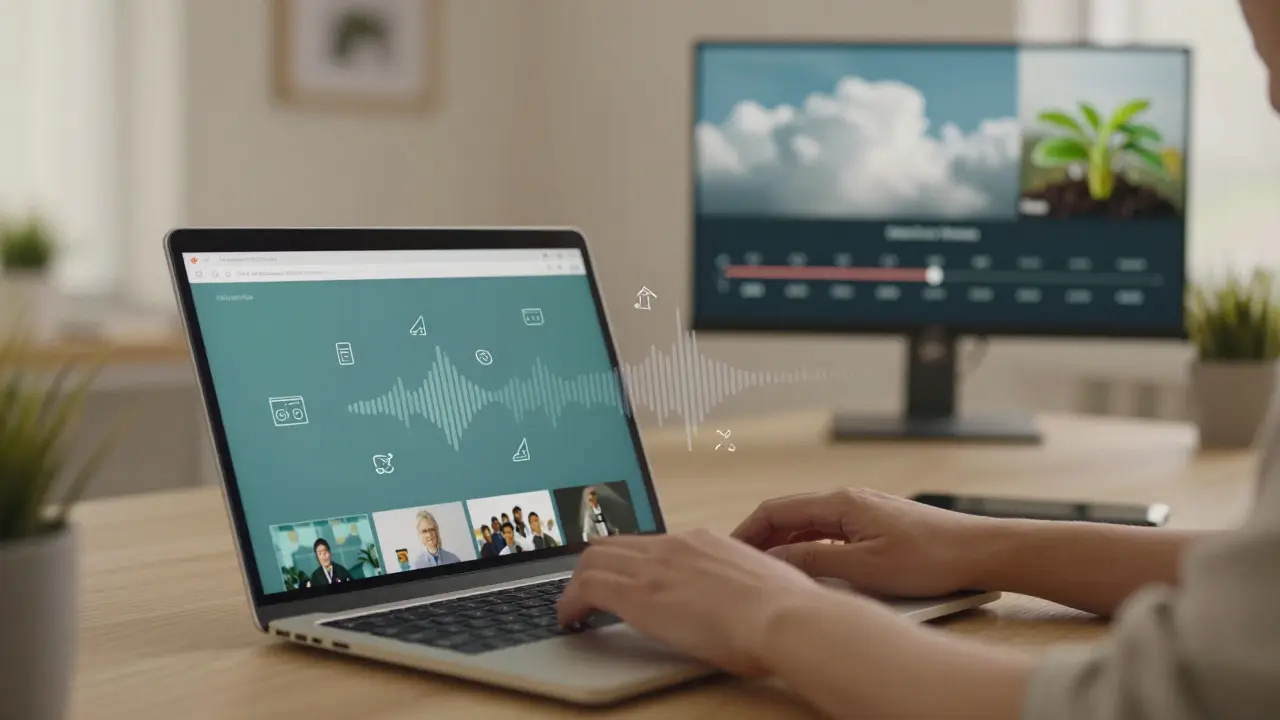
Creating course videos doesn’t mean you need to spend hours filming or pay thousands for stock footage. The best educators today use smart, legal, and free tools to make their content look professional-without the hassle. Whether you’re recording a 5-minute explainer or a 45-minute lecture series, the right music, B-roll, and icons can turn a decent video into something students actually want to watch.
Why Royalty-Free Assets Matter for Course Videos
If you’ve ever gotten a copyright strike on YouTube because you used a song from Spotify, you know why this matters. Even if your course is private or hosted on a learning platform like Teachable or Thinkific, using unlicensed content can still get you in trouble. Companies that sell courses-whether you’re an indie creator or part of a university-need to protect themselves. Royalty-free doesn’t mean free of charge. It means you pay once (or not at all) and can use the asset forever, in any project, without owing more money or worrying about legal issues.
Most students don’t notice good background music or smooth transitions. But they notice when the audio is distracting, the visuals feel cheap, or the graphics look like they were pulled from a 2008 PowerPoint. Using clean, professional assets builds trust. It tells learners you care enough to get the details right.
Where to Find Free Royalty-Free Music for Course Videos
Music sets the tone. A calm piano track works for a meditative anatomy lesson. A light, upbeat acoustic tune fits a business skills module. But you can’t just grab any song from YouTube or SoundCloud.
Here are three reliable sources with truly free, no-attribution-required music:
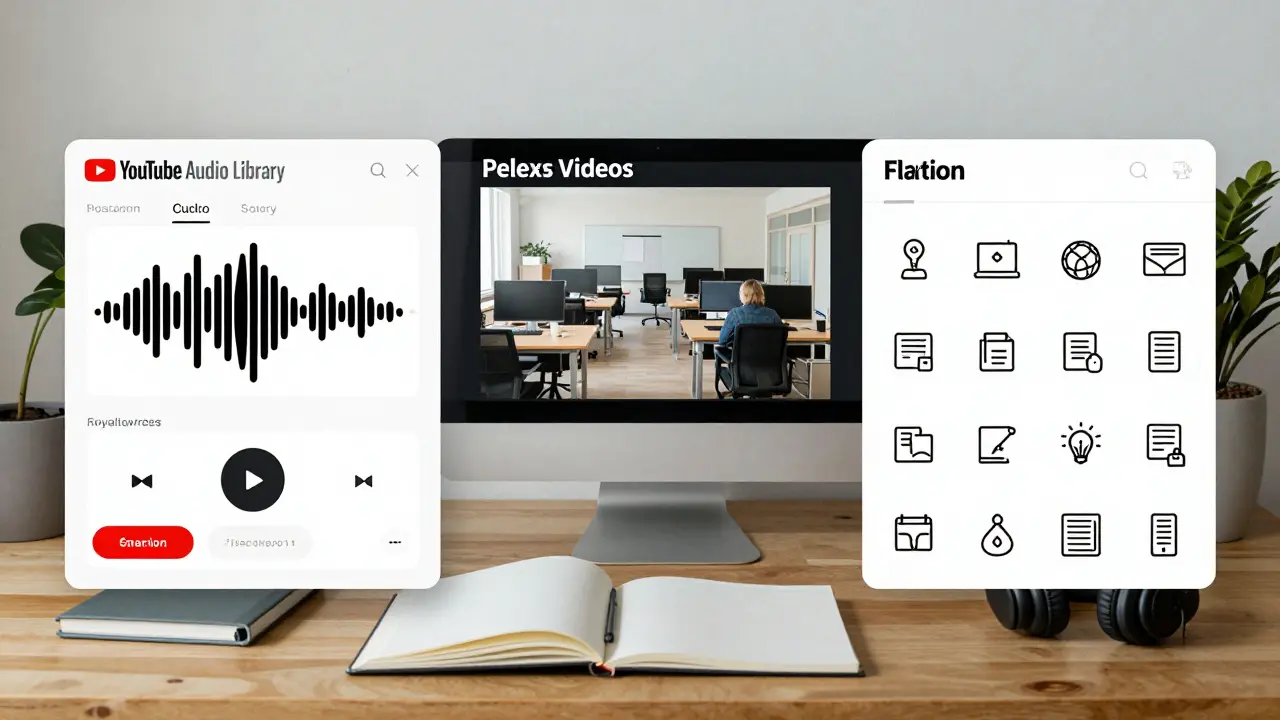
- YouTube Audio Library - Filter for "No attribution required" and download MP3s directly. Tracks like "Sunny Morning" by Scott Buckley or "Peaceful Piano" are used by thousands of educators.
- Free Music Archive (FMA) - Curated by radio stations and artists. Look for tracks under CC0 or CC-BY licenses. The site’s search filters let you pick mood, duration, and instrument.
- Pixabay Music - All tracks here are CC0. You can search by tempo, genre, or emotion. Try "Corporate Background" or "Minimal Ambient" for lecture intros.
Pro tip: Avoid music with sudden drums, vocal shouts, or lyrics in languages your students don’t understand. Even if it’s "background," your audio should support the message-not compete with it.
Best Sources for B-Roll Footage That Actually Looks Professional
B-roll is the extra footage you layer over your talking head. It could be hands typing, a time-lapse of a plant growing, or a shot of a city skyline during a finance lesson. Generic stock clips with actors smiling awkwardly at the camera won’t cut it.
These sources offer real, usable B-roll:
- Pexels Videos - All footage is free to use, even commercially. Search for "office work," "classroom," or "data visualization" and you’ll find clean, natural shots without staged people.
- Pixabay Videos - Similar to Pexels but with more abstract visuals. Great for science courses: DNA strands, fluid dynamics, circuit boards.
- Videvo - Has a mix of free and premium. Filter by "Free" and check the license. Some require attribution, so read carefully. Their "nature time-lapses" are popular in environmental science courses.
Don’t overuse B-roll. One 5-8 second clip every 30-45 seconds is enough. Too much movement distracts from your voice. Use it to illustrate a point, not to fill silence.
Icons That Make Your Course Look Polished (Without the Cost)
Icons are the silent heroes of course videos. They label sections, highlight key ideas, and break up text-heavy slides. Using messy, mismatched icons from Google Images makes your course look amateur.
Use these free, consistent icon sets:
- Flaticon (Free Plan) - Download SVG or PNG files. Search by keyword like "education," "statistics," or "communication." The free plan allows use in videos with attribution. You can easily remove attribution by upgrading to $16/month if you’re serious about branding.
- Iconscout - Offers 100 free icons per month. Their "line icons" are clean and modern. Perfect for UI/UX or tech courses.
- Material Icons (by Google) - Free, open-source, and designed for digital interfaces. Great for software tutorials. You can download them as SVGs and color-match them to your course theme.
Stick to one style. If you use outlined icons, don’t mix them with solid ones. Keep the weight (thickness) and corner radius consistent. This isn’t just about looks-it’s about cognitive load. Students process visual consistency faster than they realize.
How to Combine Music, B-Roll, and Icons Without Overloading
It’s easy to go overboard. You add music, then B-roll, then animated icons, then text pop-ups-and suddenly your video feels like a commercial. The goal is clarity, not spectacle.
Here’s a simple workflow:
- Record your voiceover first. This gives you the natural rhythm of the lesson.
- Choose one piece of music that matches the tone. Lower the volume to 20-30% so it’s felt, not heard.
- Place B-roll clips only where you mention something visual-"as you can see here," "this process looks like..."
- Add icons at the start of each new section. Keep them on screen for 3-5 seconds, then fade out.
- Use transitions sparingly. A simple cross-dissolve between clips is enough.
Test your video with someone who’s never seen it before. If they say, "I didn’t know what you were saying because of the music," or "The icons were too busy," go back and simplify.
Common Mistakes to Avoid
Even with free assets, people still mess up. Here’s what not to do:
- Using music with vocals - Even if it’s in another language, lyrics compete with your voice. Stick to instrumentals.
- Using low-res B-roll - If the footage is 480p or has compression artifacts, it’ll look bad on a 4K screen. Always download the highest quality available.
- Changing icon styles mid-course - One set, one style, full course. No mixing flat icons with 3D ones.
- Ignoring file formats - Use MP3 for music, MP4 (H.264) for video, and SVG for icons. These are universally supported and won’t bloat your file size.
- Assuming "free" means no attribution - Always check the license. Some sites require you to credit the creator. Keep a simple text file with your sources so you don’t forget.
What to Do When You Need More Than Free
Free assets work great for starters. But if you’re building a branded course library, you’ll eventually want more control. Here’s when to upgrade:
- You’re releasing courses on multiple platforms (Udemy, your website, corporate training).
- You want exclusive content-no one else in your niche uses the same music or B-roll.
- You’re scaling to 10+ courses and need a consistent look across all of them.
For those cases, consider paid libraries like Artlist, Epidemic Sound, or Storyblocks. They cost $15-$20/month but give you unlimited downloads, commercial rights, and no attribution. Many educators find the cost pays for itself in saved time and better student retention.
Final Checklist for Your Next Course Video
Before you hit export, run through this:
- Is the music instrumental and at low volume?
- Are all B-roll clips 1080p or higher?
- Are icons from the same set and style?
- Did you check the license for every asset?
- Did you test the video with sound on and off?
If you answered yes to all five, you’ve done more than most course creators. You’ve built something that doesn’t just teach-it engages.
Can I use royalty-free music from YouTube in my paid course?
Yes, as long as you download the audio from YouTube’s Audio Library and select tracks labeled "No attribution required." You can use them in paid courses, private platforms, or public YouTube videos without paying again or giving credit. Always double-check the license on the download page.
Do I need to credit the creators of free B-roll or icons?
It depends. Sites like Pexels and Pixabay don’t require credit. Flaticon’s free tier does. Always read the license before downloading. If you’re unsure, include a simple "Assets from Pexels, Pixabay, and Flaticon" note in your course description. It’s a small gesture that keeps you legally safe.
Are free icons good enough for professional courses?
Absolutely. Many top online courses use free icon sets like Material Icons or Flaticon. What matters is consistency-not price. A clean, uniform set of icons looks more professional than a mix of expensive and cheap ones. Just stick to one source and one style.
What’s the best format for icons in course videos?
SVG is ideal because it scales perfectly at any size without losing sharpness. If your editing software doesn’t support SVG, export as PNG with a transparent background at 1080p resolution. Avoid JPEG-it loses quality and has no transparency.
Can I use the same music in multiple courses?
Yes. Royalty-free licenses allow unlimited use across all your projects. Once you download a track from a free source like YouTube Audio Library or Pixabay, you can reuse it in every course you ever make-no extra fees, no limits.
If you’re just starting out, stick with free tools. They’re powerful enough to make your course stand out. As you grow, you can invest in premium assets-but only when you’re ready to scale, not because you think you need to.